
Introduction
We spend hours on computer screens for work, study, or fun, which can impact our health. Many overlook how monitor height leads to neck pain, eye strain, and shoulder discomfort.
If you feel uncomfortable after long hours at your desk, your monitor height might be the cause. Many people set up workstations without considering this aspect, which can lead to health issues that lower productivity and well-being.
Adjusting your monitor height can resolve these discomforts. This guide explains why the right height matters and offers simple steps to improve your setup.
By the end, you’ll know the best monitor heights for different desks. Next, we’ll explore simple adjustments to reduce strain and improve your work.
For more tips on setting up your desk, check out our guide on ergonomic desk chair setups.
Table of Contents
How Incorrect Monitor Height Causes Neck, Shoulder, and Eye
Before we get into how to set your monitor height, let’s see why it matters.
How you position your monitor affects your posture and body. If your monitor is at the wrong height, you might get eye strain, neck pain, or back pain. These issues can start small but become serious if left unaddressed.
Here’s a breakdown of how incorrect monitor height affects different areas of your body:
Neck Posture
If your monitor is too high or too low, you tilt your head up or down. This strains your neck and can cause pain over time. It can also limit neck movement and harm your posture.
Shoulder Tension
If your monitor makes you hunch your shoulders or look forward awkwardly, your shoulder muscles tense. Over time, this may lead to stiffness or conditions such as frozen shoulder or muscle fatigue.
Eye Fatigue
Looking at a screen too high or too low for long periods strains your eyes. If your monitor isn’t aligned with your eyes, you might squint, blink more, or get headaches. This can cause dry eyes, blurry vision, and discomfort. The longer your setup is off, the worse these problems become.
Long Work Sessions
Setting your monitor at the right height helps for long tasks, not just short ones. The correct height keeps your body relaxed so you can work comfortably longer.
If you want to learn more about how poor posture can lead to long-term health issues, read our article on preventing neck pain with proper posture.
What Is the Ideal Monitor Height for Proper Ergonomics?
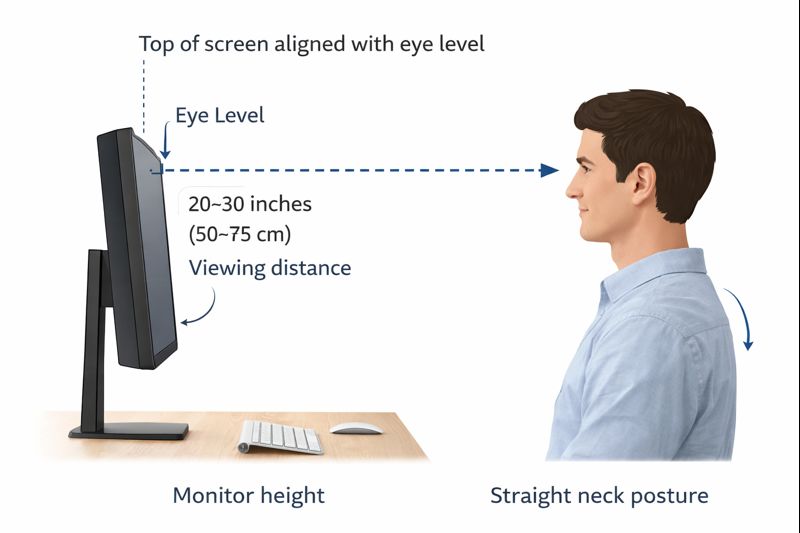
The best monitor height is one of comfort, right where you’re not looking up or down at the screen. This means that, in ergonomic terms, your head stays straight, your shoulders remain relaxed, and your eyes remain somewhat downward toward the screen. If it’s adjusted correctly, your body won’t be forced into an unnatural position.
A simple rule of thumb is that the top of your monitor should be at or just below eye level when you’re sitting up straight or standing. Your eyes should naturally settle on the upper part of the screen, not quite at the top, and never at the bottom. This means being able to look at most of the screen with a relaxed downward gaze that is easy on your neck and eyes.
The distance is as important as the height. Your monitor should be 20-30 inches (50–75 cm) away from your eyes. That is approximately the length of an arm. When the screen is too close, your eyes have to work harder. Too far, and you may find yourself leaning forward without realizing it.
Ideal Monitor Height is 5-7. The following points are essential and distilled from some ideas below regarding monitor height.
Simple Rules for Ideal Monitor Height
- Sit or stand up with good posture.
- Position the top of your screen at or slightly below eye level.
- Gaze slightly down at the center of the screen.
- Strategically place the monitor 20-30 inches from your eyes
- Maintain your head in a neutral position, neither forward nor backward.
If you follow these simple rules, you will not suffer from eye strain or a tense neck, and your back will naturally relax. This little tweak can have a big impact on your day-to-day comfort, particularly if you spend long hours at the desk.
How to Set Your Monitor to the Right Height: The Simple Guidelines
Now that you know why monitor height is important, let’s go over how to set it up.
Setting your monitor at the right height is easier than you think and can make you more comfortable quickly. Here are simple steps to help you set up your monitor:
1. The Eye-Level Rule
The main rule is to keep the top of your screen at or just below eye level. When you sit comfortably, your eyes should look slightly down. This helps you avoid tilting your head and reduces neck strain.
Why this works: When your eyes are at a neutral level, they can relax as you look at the screen. Looking slightly down also keeps your neck relaxed and helps prevent tension.
2. Correct Viewing Distance
Your monitor should be 20 to 30 inches from your eyes, about an arm’s length away. This distance helps you see the screen clearly without squinting or straining your eyes.
Why this works: Maintaining this distance helps prevent eye strain and reduces the need to refocus. It also prevents your vision from blurring when you’re too close.
3. Slight Downward Gaze
Your eyes should be 10 to 20 degrees below the screen. This angle helps keep your neck relaxed and prevents your eyes from straining.
Why this works: Looking slightly down matches how your eyes naturally rest and keeps them from straining up or down all the time. big impact on your day-to-day comfort, particularly if you spend long hours at the desk.
How Far Should Your Monitor Be From Your Eyes?
Getting your monitor height right is just one part of a comfortable setup. The distance from your eyes also matters for preventing neck pain, tired eyes, and bad posture. Even with the right height, the monitor can be uncomfortable if it’s too close or too far.
Recommended Monitor Viewing Distance
Most people find that keeping their monitor about an arm’s length away works best. This is usually between 20 and 30 inches, but the exact distance can depend on your monitor’s size, its resolution, and what feels comfortable for your eyes.
If your monitor is too close, your eyes have to work harder, and you might feel more strain over time. If it’s too far, you might end up leaning forward, which can make your neck and shoulders tense.
How Monitor Size Affects Viewing Distance
Bigger monitors often need to be set farther back so you can see the whole screen comfortably.
Examples:
- 24-inch monitor: about 20 to 24 inches away
- 27-inch monitor: about 24 to 30 inches away
- Ultrawide monitor: often needs to be farther back, depending on desk depth. It is especially true if you spend long hours at your desk.
Why Desk Depth Matters for Monitor Placement
Many ergonomic problems occur when desks are too shallow, forcing the monitor too close to your face.
A deeper desk gives you:
- better viewing distance
- improved posture
- reduced eye strain
- more natural neck positioning
If your monitor still feels too close, the problem may be the desk’s depth rather than its height.
Internal link opportunity:
Your desk depth article.
Signs Your Monitor Is Too Close or Too Far
Your monitor distance may need adjustment if you notice:
- leaning forward while reading
- blurry vision
- dry or tired eyes
- neck tension
- frequent headaches
- squinting at the screen
Even small changes to your monitor distance can make long work sessions more comfortable.
Is the Traditional Eye-Level Rule Still Correct?
Ergonomic experts have long recommended setting your monitor to eye level to reduce neck strain and promote good posture. This guidance remains effective in traditional offices, particularly with smaller monitors between 22 and 24 inches.
Modern ergonomic setups such as dual-monitor workstations and standing desks often require more flexible monitor positioning than traditional office environments.
However, workstations have evolved. Many now feature larger monitors, such as 27-inch or 32-inch screens, ultrawide displays, dual monitors, or laptops on desks not designed for ergonomics. As a result, the traditional eye-level guideline may not suit every setup.
This is partly due to natural viewing habits. When reading or working for extended periods, your eyes typically look slightly downward rather than straight ahead. If a large monitor is positioned too high, you may need to tilt your head upward, which can lead to neck and shoulder tension, eye fatigue, and poor posture over time.
In many modern setups, slightly lowering the monitor improves comfort, especially with large or ultrawide screens. This adjustment allows for more natural eye movement and reduces neck strain, which is particularly beneficial for those who spend extended periods reading, writing, coding, designing, or multitasking.
For example, a standard 24-inch monitor is typically comfortable with the top edge at eye level. In contrast, a 34-inch ultrawide monitor is often more comfortable when positioned slightly lower, as more of the screen extends above your natural line of sight.
Ultimately, optimal monitor height depends on several factors, including screen size, viewing distance, desk and chair design, posture, and daily habits. Instead of following a single rule, select a monitor position that keeps your neck relaxed, shoulders comfortable, and eyes at ease throughout the day.
Ideal Monitor Height by Screen Size
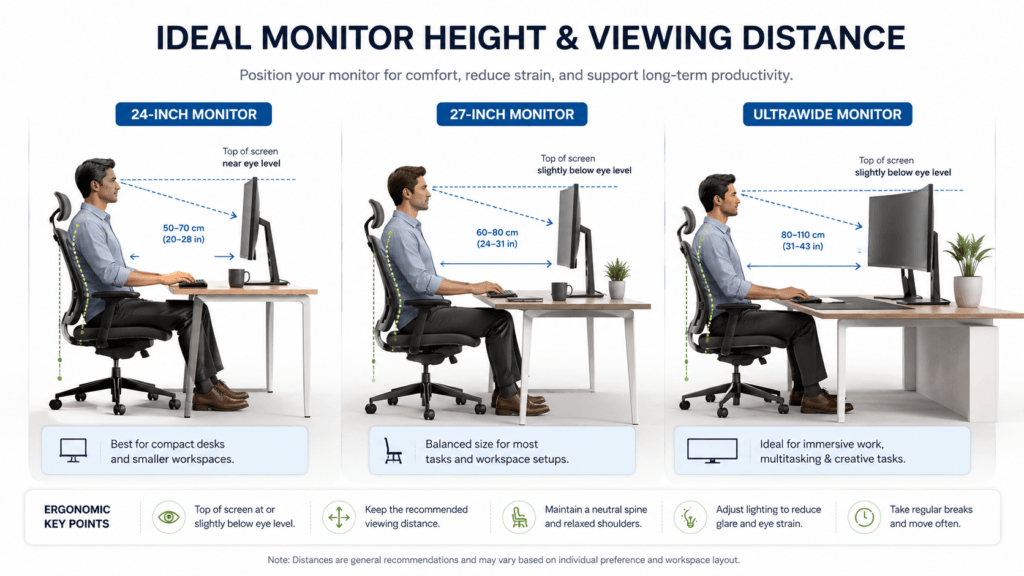
Monitor height depends on monitor size. Bigger screens offer more vertical space, changing how you move your eyes and neck. Smaller monitors are best at eye level, while larger ones often feel better set lower.
22–24 Inch Monitors
Keep smaller monitors with the top of the screen near eye level so you can see the whole screen comfortably without straining.
Place the monitor about an arm’s length away for comfortable viewing.
27-Inch Monitors
A 27-inch monitor often works better when set a little lower than on smaller screens. Since it’s taller, placing it at eye level can make you tilt your chin up or strain your neck to see the top. The table is positioned so the top edge of the screen is just below eye level, so you naturally look down a bit.
32-Inch Monitors and Ultrawide Displays
Large monitors and ultrawide screens require a different setup because they require more eye and neck movement.
If these screens are set too high or too close, you may look up often, which can cause neck and shoulder tension and eye fatigue.
To stay comfortable:
- set the monitor a bit lower,
- increase viewing distance,
- and make sure the center of the screen lines up with your usual line of sight.
Larger monitors also require proper desk depth to maintain a comfortable viewing distance without excessive eye or neck movement.
This setup is usually more comfortable for tasks such as coding, design, spreadsheet work, video editing, or using multiple windows at once.
Curved and Ultrawide Monitor Setups
Curved and ultrawide monitors are designed to feel more immersive, but they also change how you view the screen. Since they curve around your view, getting the right distance and height is even more important. Align the screen center with your sight so you can look across the display without turning your neck. much.
Many ultrawide monitor users also benefit from adjustable monitor arms to improve screen positioning and viewing flexibility.
The bigger the monitor, the more important it is to balance its height with the right distance and good posture.
Monitor Height vs Viewing Distance
Monitor height and viewing distance are equally important. Sitting at the wrong distance can cause neck and eye strain, even with the right height.
People often overlook the importance of viewing distance. Larger monitors need more distance; smaller screens work well close up.
Keep your monitor about an arm’s length from your eyes. Adjust this distance based on monitor size and resolution to maintain comfort and avoid strain.
A 24-inch monitor usually works fine at a normal desk distance, but a 32-inch or ultrawide monitor often needs to be farther back. If a large screen is too close, you must move your eyes and neck more, which can cause tension and discomfort.
Even with a correct monitor height, a poor desk setup can still create discomfort if the screen sits too close to the user. Proper desk depth and ergonomic chair positioning help maintain a relaxed posture throughout long work sessions.
How far you sit from your monitor affects its height. If your screen is farther, it may feel better slightly higher. If it’s closer, a lower position often better matches your natural line of sight.
This is especially important when you use:
- ultrawide monitors,
- dual-screen setups,
- large curved displays,
- and multitasking setups where you often shift your focus across the screen.
If you lean forward, squint, lift your chin, or constantly adjust your posture, you might need to change your monitor distance, even if the height seems right.
To make your workspace as comfortable as possible:
- keep your monitor far enough away to see the whole screen easily,
- avoid looking up too much,
- and set the center of the screen to align with your natural line of sight.
The bigger your monitor, the more important it is to get the viewing distance right. The best setup balances height, distance, and posture to keep you comfortable for the long term and helps prevent fatigue or strain.
Ideal Monitor Height for Standing Desks, Deep Desks, and Compact Workstations
Desks vary in style, so match your monitor setup accordingly to ensure comfort and ergonomics.
Sitting Desk Setup
For sitting desks, ensure that:
- Keep your feet flat on the floor and your knees at 90 degrees.
- Set the monitor at eye level. This helps maintain a neutral posture and lets your chair support your back.
Key Tip: If your chair doesn’t adjust, place a sturdy footrest or a stack of books under your feet to keep your feet flat and supported.
Standing Desk Setup
For standing desks:
- Raise the monitor so your eyes align with the top of the screen.
- Maintain a neutral posture with feet flat on the ground and elbows at about 90 degrees.
Key Tip: Consider using a sit-stand desk so you can regularly alternate between sitting and standing while keeping your monitor at the right height without needing to readjust each time.
Adjustable Desk Setup
For adjustable desks, adjust both desk and monitor height depending on whether you’re sitting or standing.
Key Tip: Install monitor arms to make it easy to quickly reposition your screen for both sitting and standing, especially if you change positions often.
Common Sitting Mistakes
Lots of people are uncomfortable with minor setup mistakes they’re unaware of.
- Screen too low: This causes you to crane your neck forward and puts stress on your neck and shoulders.
- Laptop on desk directly: Laptop screens are generally too low, leading to bad (low) posture.
Correcting these easy-to-make mistakes will provide much greater comfort. When you have ergonomic seating and monitor elevation, your body stays balanced, relaxed, and supported during those long hours at the desk.
Monitor Height for Laptop vs. Desktop Users
Laptop Users
Laptops often cause poor posture, especially when used on a desk without a stand. For better comfort:
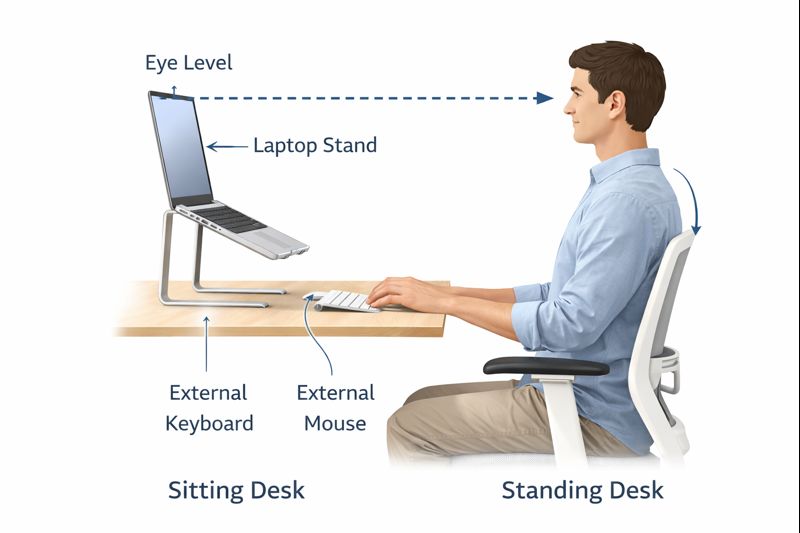
- Use a laptop stand to elevate the screen to eye level.
- Pair your laptop with an external keyboard and mouse to avoid wrist strain.
Why this works: Elevating your laptop reduces the need to look down at the screen, allowing you to maintain a neutral neck position.
Desktop Users
Desktop users have more monitor height options. You can set the monitor at eye level by using:
- Monitor arms
- Monitor stands
Why this works: Desktop monitors are usually easier to adjust, so you can set them up to fit your needs.
With proper height balance between desk and monitor, standing work is comfortable, safe, and productive.
Signs Your Monitor Height Is Wrong
Your desk may look fine, but even small problems with your monitor’s position can cause discomfort over time. Many people adjust their chair, keyboard, or posture without realizing the monitor is actually the issue.
Your body usually gives you warning signs if your monitor height or viewing angle is off.
Neck Stiffness and Upper Back Tension
If your monitor is set too high or too low, your neck muscles can stay tense all day. A low screen often makes you lean your head forward, while a high screen can make you lift your chin awkwardly.
Poor monitor positioning combined with incorrect desk height or chair support can place continuous stress on the neck and upper back throughout the day.
Over time, this tension can cause tightness in your neck, shoulders, and upper back.
Leaning Forward While Working
Leaning toward your monitor without noticing is a common sign of a poor setup. This often happens if the screen is too far away, too low, or hard to see from your usual spot.
Laptop users often experience this issue when the screen sits too low without an external keyboard or laptop stand.
Leaning forward for long periods can put extra pressure on your neck and spine and lead to poor posture.
Eye Strain and Tired Eyes
If your eyes feel dry, tired, or strained after working for a while, your monitor’s position could be part of the problem. A screen that is too high can expose more of your eyes, causing dryness and discomfort during long use.
If your monitor is too close or too far, your eyes have to work harder to focus on the screen.
Frequent Posture Adjustments
With a well-placed monitor, you should be able to work comfortably without constantly shifting around. If you often adjust your chair, tilt your head, stretch your neck, or move during the day, your monitor setup might need some changes. These issues usually become more noticeable during long work or study sessions.
Chin Tilting Up or Down
Your head should remain in a neutral position when looking at your screen. If you often need to lift your chin to see the top or tilt your head down to see the center, your screen is likely too high or too low.
If your neck feels relaxed, it’s usually a good sign that your monitor is set up correctly.
Quick Self-Check
To check your monitor setup, close your eyes, relax your shoulders and neck, then open your eyes and look at the screen as you normally would. Your eyes should land near the top of the display without needing to tilt your neck up or down.
If the position still feels awkward after a few minutes, try making small changes to the height or distance. Even small adjustments can make a big difference in comfort.
Common Mistakes When Setting Monitor Height
Even if you try to set your monitor height correctly, it’s easy to make mistakes. Here are some things to watch out for:
Screen Too Low
- If your screen is too low, you’ll end up bending your neck forward, which can strain your neck and back.
Screen Too High
- If your monitor is too high, you have to look up, which can strain your neck and shoulders.
Laptop Flat on the Desk
- If you don’t use a laptop riser, you’ll have to look down at the screen, which isn’t good for your posture.
How to Fix These Mistakes: Use the simple steps above to set your monitor at eye level and make sure the distance feels comfortable.
Quick Checklist for Setting Ergonomic Monitor Height
Here’s a quick checklist to help you set up your monitor the right way:
Adjust your chair so it supports your back, with your feet flat on the floor.
Monitor the top at eye level.
20–30 inches between your eyes and the screen.
Slight downward gaze (10–20 degrees).
Need a more detailed ergonomic assessment? Try our ergonomic workspace checklist.

How Monitor Height Affects Eye Strain and Screen Fatigue
Because your ocular muscles are constantly working to keep your eyes up or down, it takes even more effort, which can lead to fatigue. This may result in a lack of focus and reduced work productivity.
Dry Eyes & Fatigue Overview
Avoiding blinking is another side effect of a mispositioned monitor, which can lead to dry eyes. This can cause dry eyes, irritation, and general fatigue — all in a matter of hours. This can be alleviated by lowering the height of your screen so that you are looking slightly downward.
Screen Angle and Blinking
Slightly tilt the monitor backward (10–20°) so that your eyes are at a comfortable angle. This triggers a natural blink and helps prevent glare. Elevating the height to a proper viewing distance, along with an angle, is better for your eyes, especially when your monitor has an edge-to-edge frame.
Frequently Asked Questions
What is the best monitor height for desk work?
The best monitor height is when the top of the screen is at or just below eye level, with a slight downward gaze.
How far should the monitor be from my eyes?
The monitor should be 20–30 inches from your eyes, approximately an arm’s length away.
Is eye-level monitor placement always best?
Not always. Smaller monitors often work well at eye level, but larger screens and ultrawide monitors may feel more comfortable slightly lower to reduce upward neck movement and eye strain.
How do I adjust the height of my dual monitors?
The primary monitor should be centered and at eye level, while the secondary monitor should be placed slightly angled toward you.
How often should I adjust my monitor height?
Adjust your monitor height when switching between sitting and standing, or if you feel discomfort while using it.
Final Thoughts: Small Adjustment, Big Ergonomic Impact
Setting your monitor height correctly boosts comfort and posture. At home or in the office, small changes can raise your productivity and health. Good ergonomics helps prevent neck, shoulder, and eye strain.
If you follow these steps, you’ll have a comfortable, ergonomic workspace that supports your long-term health and productivity. Now you can stop worrying about your monitor height.