
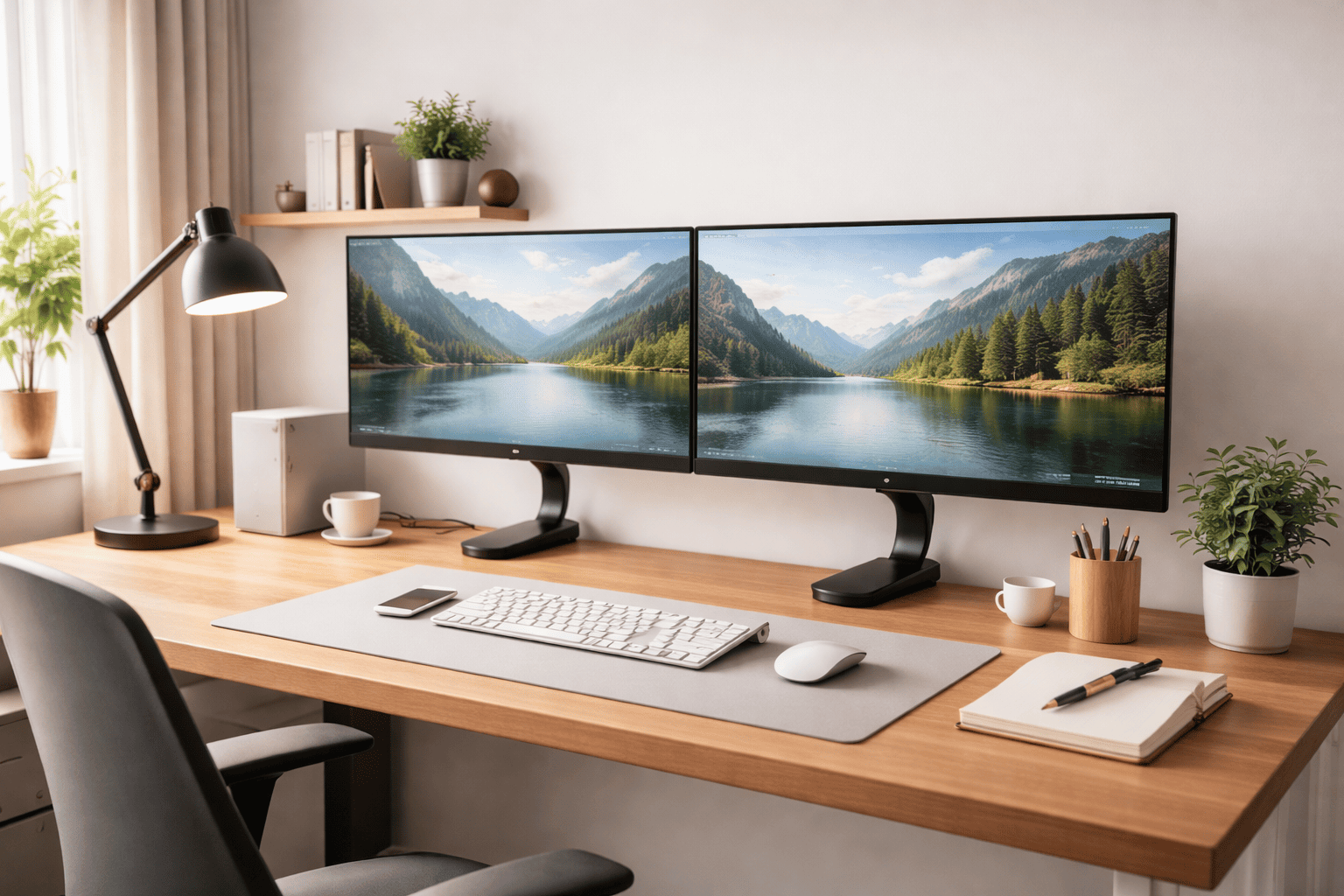
A dual monitor setup desk can help you work faster and more comfortably—but only if set up correctly. Two screens at the wrong height or distance can quickly cause neck pain, eye strain, and poor posture. Our guide below covers desk height, screen spacing, and alignment to maintain natural posture for relaxation while working, studying, or gaming. It provides step-by-step advice for beginners, so you can create a setup that feels balanced and comfortable for long daily use.
Table of Contents
What Is a Dual-Monitor Desk Setup
A dual monitor setup desk configuration that enables you to run two computer screens at the same time. You can spread your activities across two screens rather than toggling between windows on a single screen. These tasks are sped up and made easier when you need to view several things at once.
Offices are practically empty, so unless you work in a tech job, the odds are that this is not even available to you at present. Dual monitors are a hit with remote workers, but programmers, designers, traders, and, of course, students or anyone who spends quite a bit of time on the computer also love them. For instance, you can have one screen display emails or notes and the other feature your main work. This reduces the sense of perpetual switching so that you can focus on” us.
The “desk” part is important. A dual-monitor setup desk should be wide, deep, and sturdy enough to accommodate two monitors mounted side by side at the proper height and spacing. Some people prefer to place both monitors flat on the desk with stands, while others use a monitor arm that attaches to the desk and supports the screens in midair. Monitor arms help free up space and make it easier to adjust monitor height and angle.
Two flat-screen TVs without proper arrangement can strain the eyes. That’s that. Knowing how it works is the first step toward an ergonomic, comfortable workspace.
How to Test If Your Dual Monitor Setup Is Correct
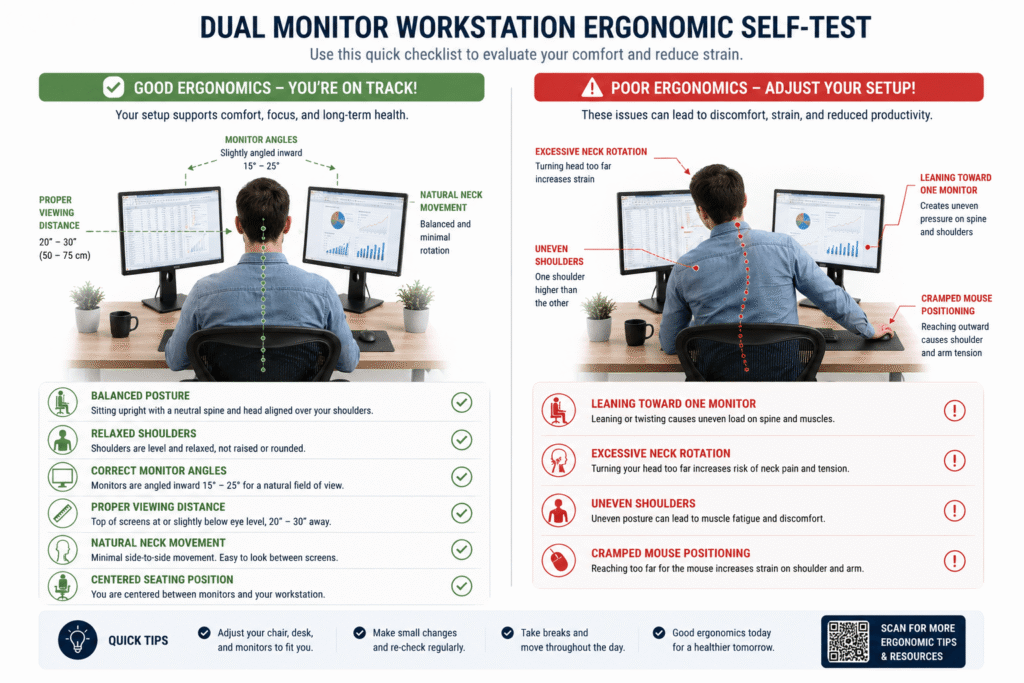
A dual-monitor setup may appear visually organized while still causing long-term ergonomic strain.
Test your setup by noticing how your body feels during actual work, rather than just measuring monitors or desks.
The goal is not to achieve a perfectly static posture. The goal is to maintain sustainable comfort while reducing excessive neck movement, shoulder tension, and posture imbalance throughout the day.
Signs Your Dual Monitor Setup Is Working Well
Your setup may be ergonomically comfortable if:
- neck movement feels natural rather than repetitive
- shoulders remain relatively relaxed
- Monitor switching feels smooth.
- Posture stays balanced throughout the day.
- eyes feel less strained during long sessions
- You rarely lean toward one screen excessively.
Signs Your Setup May Need Adjustment
Your setup may need recalibration if:
- One side of the neck becomes tighter.
- shoulders feel uneven
- You lean heavily toward the primary monitor.
- Eye fatigue increases during multitasking.
- The mouse arm becomes tense.
- posture drifts asymmetrically over time
Practical Calibration Adjustments
Small workstation changes can significantly improve comfort.
Recommended adjustments:
- Reduce monitor spacing. The angle displays inward slightly.
- Reposition the primary monitor placement.
- Increase the monitor viewing distance.
- improve desk depth usage
- Reposition the mouse closer to the keyboard.
- Adjust chair position instead of twisting repeatedly.
Regardless of your setup, remember regular movement and varied posture throughout the day improve comfort.
Staying in one position too long leads to fatigue, no matter how ergonomic your setup is.
Dual Monitor Ergonomics for Different Workflows
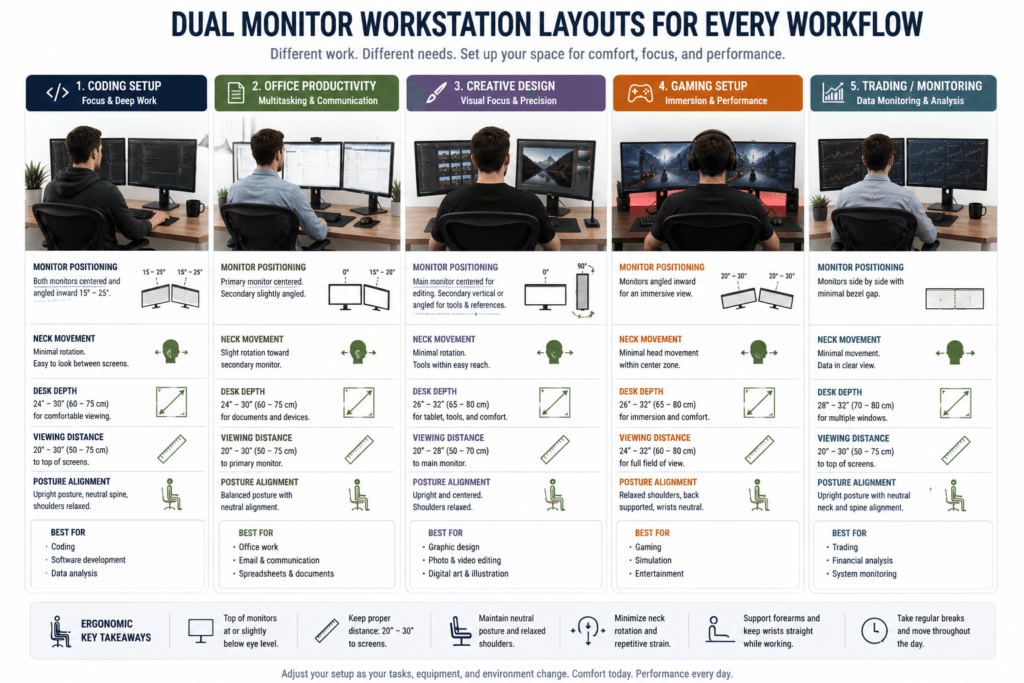
How you use your dual monitors throughout the workday determines the ideal ergonomic setup
Different jobs create different needs, such as:
- viewing patterns
- neck movement habits
- dominant-screen behavior
- posture demands
- and mouse usage patterns.
For example, a setup that works for office multitasking might feel uncomfortable or less efficient if you are coding, designing, or editing. Let’s look at how specific needs affect different workflows.
Dual Monitor Ergonomics for Coding
Developers typically dedicate one monitor to coding while reserving the second for documentation, terminals, or tools.
Common ergonomic issues:
- Constant neck rotation toward the reference monitor
- leaning toward code windows
- asymmetrical sitting posture
- mouse overreach during long sessions
Helpful adjustments:
- Center the primary coding monitor directly in front
- angle secondary display inward slightly
- Reduce excessive monitor spacing
- Maintain a comfortable viewing distance during long reading sessions
Try to limit how often you turn your neck during extended coding sessions. Moving code-hetlet’s consider how ergonomic needs change for office work.
Dual Monitor Ergonomics for Office Work
Office workflows often involve:
- spreadsheets
- meetings
- browser tabs
- multitasking between documents
Because switching between screens is frequent, balanced and well-placed monitors are essential.
Helpful adjustments:
- keep monitors relatively close together
- Reduce excessive lateral eye movement
- Maintain neutral shoulder posture while typing
- Avoid leaning toward the active screen during meetings
Dual Monitor Ergonomics for Design and Creative Work
Creative professionals often use:
- timelines
- tool panels
- reference windows
- preview screens
- large visual workspaces
This kind of setup increases:
- eye scanning demands
- visual focus intensity
- and prolonged viewing duration.
Ergonomic considerations:
- Larger monitors usually require more viewing distance
- Desk depth becomes increasingly important
- Monitoring brightness differences may increase visual fatigue
- Excessive side viewing can create neck tension during editing sessions
Dual Monitor Ergonomics for Gaming Setups
Gaming setups often combine:
- primary gameplay monitor
- secondary communication or streaming display.
Common problems:
- The secondary monitor is placed too far outward
- excessive neck rotation during streaming
- mouse arm tension
- shallow desk positioning
Helpful adjustments:
- Center the gaming monitor directly in front
- angle secondary display inward
- Maintain enough desk depth for visual comfort
- Avoid positioning displays too close to the face
Dual Monitor Ergonomics for Trading and Monitoring Setups
Trading and monitoring environments often involve:
- multiple data windows
- continuous visual scanning
- prolonged static posture
- high attention demand
These setups can increase:
- cumulative neck fatigue
- eye strain
- posture rigidity
- shoulder tension over time
Helpful adjustments:
- Keep frequently viewed screens closer to the center
- minimize extreme viewing angles
- alternate posture regularly
- incorporate movement breaks throughout the day
The most comfortable monitor layout usually depends more on things like:
- viewing behavior,
- posture habits,
- and task frequency
rather than just the number of monitors you have.
Even with the same hardware, two people might need entirely different monitor setups depending on their work styles.
Dynamic Ergonomics for Dual Monitor Users
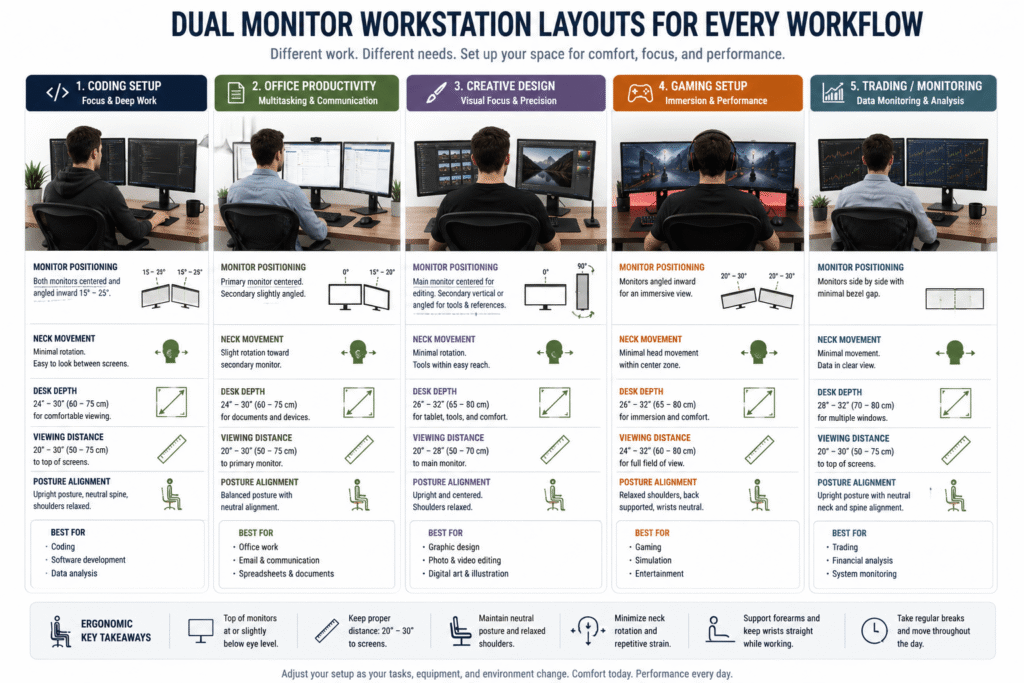
Even with an optimally positioned dual-monitor setup, remaining stationary for prolonged periods can become uncomfortable.
Dual monitor users often:
- rotate repeatedly toward one display
- lean unconsciously during focused work
- shift asymmetrically over time
- Maintaining fixed viewing positions for extended sessions is common.
As fatigue sets in, a monitor configuration that initially felt supportive may become less so.
Why Dual Monitor Comfort Changes Over Time
Your desk posture naturally shifts during extended computer use.
For example:
- shoulders may gradually tense
- Neck rotation may increase unconsciously.
- The monitor viewing distance may decrease.
- Users may lean toward the active screen
- Sitting posture may become asymmetrical
These changes are normal and not something to worry about.
The goal of ergonomics is not to keep a stiff, perfect posture all day. It is about reducing strain and encouraging healthy movement.
Static Posture Can Increase Fatigue
Staying in such a perfect position for hours can become uncomfortable over time.
Even correctly aligned dual monitor setups benefit from:
- posture variation
- periodic movement
- chair repositioning
- standing transitions
- and adjusting monitors periodically throughout the day.
Making small changes throughout the day often helps you feel less tired than staying in one position for long periods.
Practical Dynamic Ergonomic Adjustments
Helpful movement-based adjustments:
- Reposition the chair slightly throughout the day
- alternate dominant monitor usage periodically
- change sitting angle during long sessions
- Recline occasionally to reduce spinal loading
- Take short standing or walking breaks
- Relax your shoulders intentionally during focused work
Signs Your Setup May Need Dynamic Adjustment
Your workstation may benefit from movement variation if:
- Posture feels progressively worse later in the day
- Neck stiffness increases during long sessions
- One shoulder becomes tighter
- Monitor viewing feels visually fatiguing
- You lean toward one screen unconsciously
- sitting posture becomes increasingly rigid
Perfect ergonomic posture is usually temporary rather than permanent.
To maintain comfort, regularly shift positions, move around, and tweak your setup rather than staying still all day.
This is especially important if you use two monitors, because looking back and forth can cause you to move unevenly throughout the day.
Benefits of a Proper Dual Monitor Desk Setup
A well-designed two-monitor desk setup can significantly enhance your daily computer work, making it more efficient and comfortable. One of the main advantages of this configuration is increased productivity. With two screens, you can view more information simultaneously. For instance, you could have a spreadsheet open on one monitor while browsing the internet or composing an email on the other. This setup reduces the need to constantly switch between tabs, allowing you to return to your tasks more quickly.
There is also less eye and neck strain. When monitors are at the right height and distance, your head tracks straight ahead instead of craning too far left or right. It helps eliminate neck strain and tired eyes, especially when binge-watching a show.
A properly set up also promotes good posture. You can also raise your monitors to eye level, and keep your neck straight and your shoulders comfortable. This is far better than hunching forward or looking down at a low screen. Good posture can eventually decrease back pain and eliminate daily fatigue.
People who regularly reference documents, charts, or code in real life say they tend to feel less tension when using two monitors because everything seems more organized. With the right set of dual monitors, it’s not just about convenience; it’s about working smarter and being more comfortable.
Ideal Desk Size for Dual Monitors
The right desk size is crucial for a comfortable dual monitor setup. A small Desk can push your monitors too close together or too close to your eyes, leading to neck and eye strain.
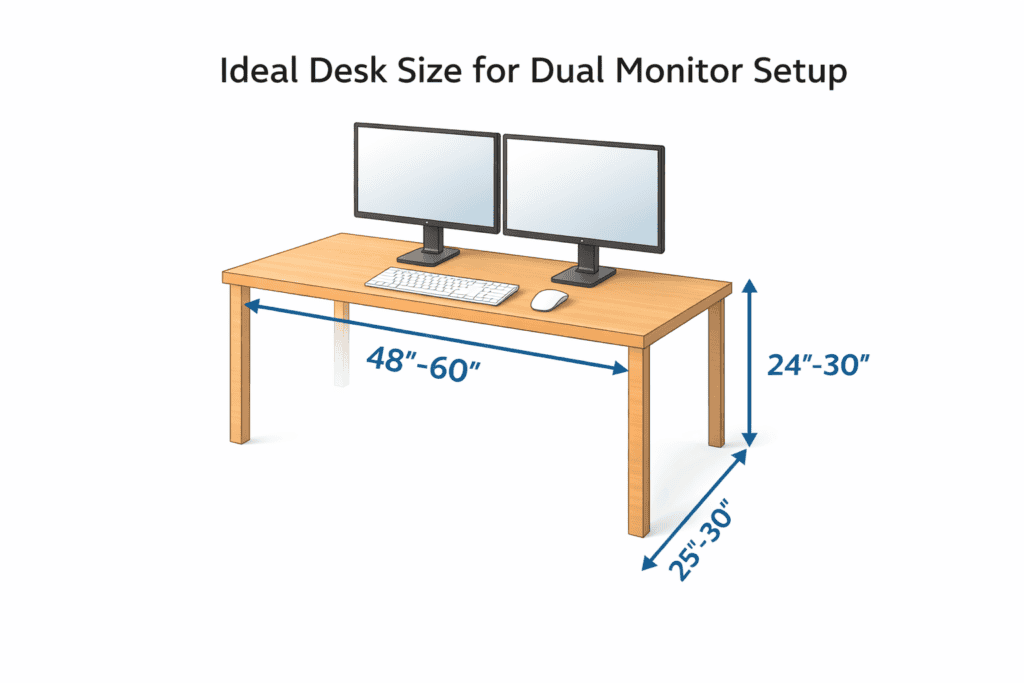
For a typical dual monitor system, the minimum desk width should be 48 inches. This provides ample space for two screens side by side. For those with bigger screens, or who want more wiggle room for accessories (speakers, a laptop), 60 inches is a more comfortable desk size.
Desk depth also matters. 24 inches in depth is the minimum for small monitors; 27–30 inches is fine. Having more depth makes it easier to keep monitors at a comfortable reading distance while also providing space for your keyboard and mouse.
Monitor Size vs Desk Size (Simple Guide)
| Monitor Size (Each) | Recommended Desk Width | Recommended Desk Depth |
| 22–24 inches | 48–55 inches | 24–27 inches |
| 27 inches | 55–60 inches | 27–30 inches |
| 32 inches | 60–70 inches | 30 inches or more |
Desk height should also work for the correct size. Your Desk should also match the height of your chair and monitor to support proper posture. You can learn more in our guide on standard desk height in inches, which explains how desk height affects comfort and ergonomics.
Dual Monitor Ergonomic Layout Options
Selecting the proper dual monitor configuration is just as crucial as selecting the perfect desk size. Your screen setup influences your neck movement, eye comfort, and general posture. The most common ergonomic arrangements are described below in plain language so you know what’s right for your work.
Side-by-Side Monitor Setup
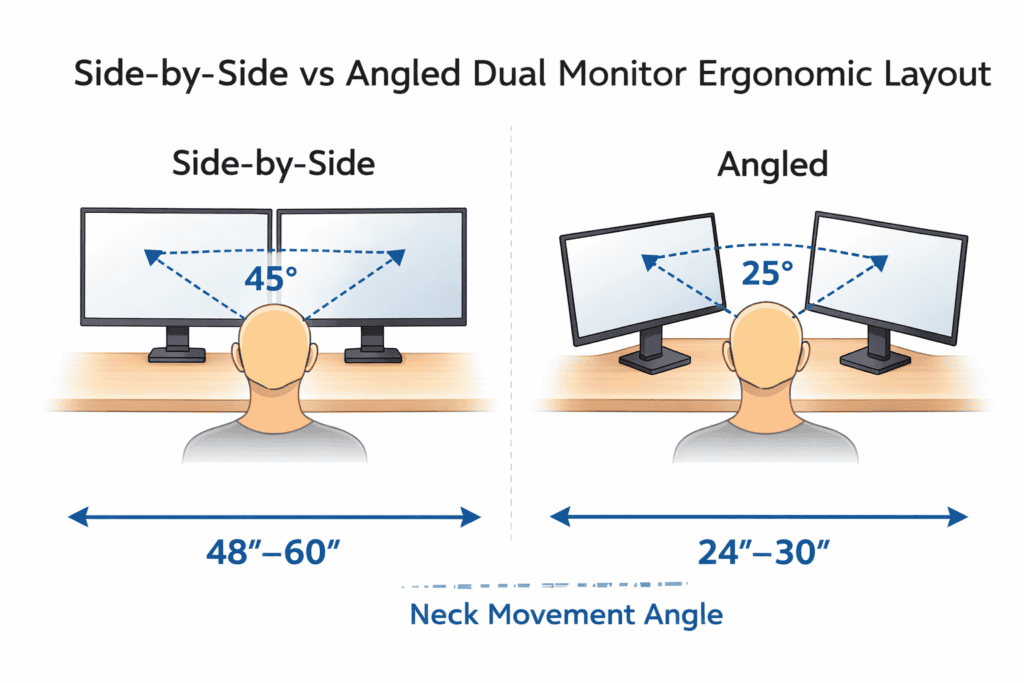
This is the primary dual monitor setup. Both monitors are on top of each other, side by side, at the same level. It works well with one screen as your primary and the other for reference, such as email, chat, or notes.
Not the right fit for everyone, though. If both screens get a lot of use, your neck may swivel back and forth too much. Repeating this neck rotation for hours strains your muscles and may cause them to stiffen or ache. To minimize this problem, tilt both monitors slightly inward and keep the primary monitor straight. “
A “g” e” “V” Layout
B” t” m””” “”t “”a “g” e” “V” design a “e “i “”” “d” t “w” r” “ou, creating a shallow V. Each of these keeps a screen within your natural line of sight, but shortens the distance your neck has to turn.
For those who switch between the displays a lot – as designers, analysts, and everyone multitasks regularly- it’s singing in your eyes, and not just your neck, to make the turn, which is healthier for long work sessions.
Vertical + Horizontal SeSetup
In this data arrangement, one monitor is in its standard position, and the other is turned vertically. It’s great for reading long documents, coding, or viewing wide websites.
The vertical screen sits a little off-center; the horizontal one stays in the middle. This is less taxing, because let’s face it, you do most of your straightforward work, and this vertical monitor is used as a support rather than a constant viewing screen.
Laptop + Dual Monitor Desk Setup
A laptop is then utilized here, with one or two external monitors. Common Mistake: The lazy way is to leave the laptop flat on the Desk. Then you will be looking downward.
For better ergonomics, raise the laptop to eye level and use it as a second screen. Your primary external display should be placed in front of you. That setup is great for remote workers/laptop users who want a full desktop-style experience.
When to Avoid Side-by-Side Layout
If each monitor will be used 50 percent of the time each day, avoid placing them side by side. Glancing around may not seem like much at first, but over time, frequent head turning can lead to neck pain and fatigue. In that situation, an angled or blended position is better.
The optimal arrangement is the one that keeps your head straight, your eyes at ease, and your posture chill.
Ideal Monitor Height, Distance & Angle
Ensuring the proper monitor height, distance, and angle is an important element of a comfortable dual-monitor desk setup. Start with the monitor height. The top of each screen should be at eye level, or, if you’re sitting up straight. You maintain your neck in a neutral position, which stops you from tilting yourbackfortthere’shere’sre’s’sre’smonyou’reyou’reu’rereu’re most often set it in front of you and adjust its height first.
Next is viewing distance. Both monitors should be placed approximately 20–30 inches from your eyes. If they are too close, your eyes will have to work harder to focus. If you are too far back, you might lean forward without realizing it. Being the perfect distance away relieves eye strain and promotes better posture.
Finally, adjust the monitor angle. Incline the screen backward by 10–20 degrees each. This angle coincides with the natural line of sight and minimizes reflective glare. Don’t use flat, vertical sc, which tends to put the neck at an awkward angle.
Desk Depth Requirements for Dual Monitors
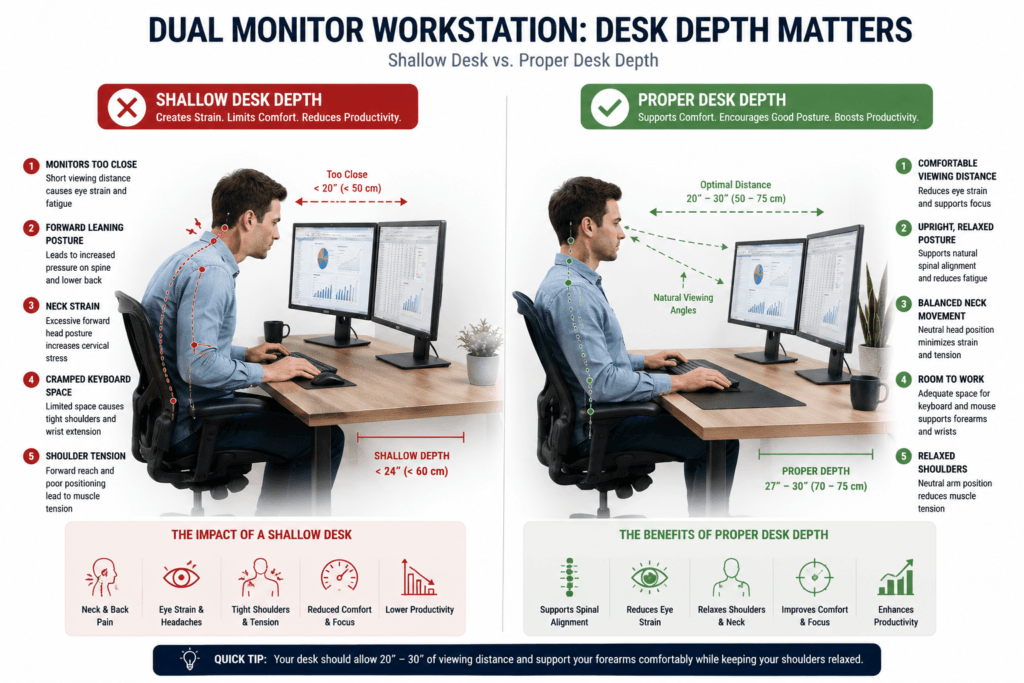
Using two monitors often requires a deeper desk than a single monitor. More screen area means you must sit farther back and shift your gaze more to view both displays.
If your dual monitors are too close, you might notice:
- excessive neck movement
- increased eye strain
- posture collapse
- forward leaning
- shoulder tension
These challenges may be exacerbated with larger screens or ultrawide monitors.
Why Desk Depth Is More Important With Multiple Screens
Using two monitors means you have to deal with more:
- horizontal eye movement
- neck rotation
- monitor viewing area
- visual focus demands
If your Desk is too shallow, your monitors may be positioned too close together, potentially increasing strain on your eyes and neck throughout the day.
This setup still feels cramped, even with a wide desk.
Signs Your Desk May Be Too Shallow for Dual Monitors
Watch for these common warning signs:
- monitors feel visually overwhelming
- frequent leaning backward or forward
- excessive head movement between screens
- limited keyboard and mouse space
- shoulders rounding forward
- eyes feeling fatigued after long sessions
Practical Ergonomic Tips
To make your dual monitor setup more comfortable, try these tips:
- Increase the monitor viewing distance.
- Use monitor arms to free desk space.
- Reduce desk clutter
- Keep monitors aligned consistently.
- Avoid placing screens directly at the edge of the Desk.
- Maintain enough forearm support while typing.
While deeper desks generally enhance monitor viewing comfort, excessive depth may increase the ergonomic reach required for the keyboard and mouse.
Don’t need the deepest Desk. Instead, plan your layout to allow comfortable monitor viewing and relaxed arms.
Dual Monitor Setup for Neck, Eye & Back Health
A bad dual monitor setup messes up your neck, eyes, and back. One such problem is neck rotation. The head keeps turning side to side when the monitors are spaced too far apart. Repeating this motion can cause the neck to become stiff and painful. Keeping the main screen centered helps minimize it.
Eye fatigue is another problem. Your eyes are forced to change in height and brightness. This can lead to tired eyes, dryness, and even headaches — particularly during long work sessions. The monitor’s height and distance adjustments accommodate the user’s eye movements, allowing them to flow smoothly and naturally.
It also affects your shoulders and upper back. Shoulders can lift or slump without you even realizing when screens are too high, for example, or too low. This causes strain and upper back pain.
If you frequently feel fatigued, dry-eyed, or tight after time on screen, have a look at our guide to Dry Eyes, Headache & Fatigue to learn more about the role desk ergonomics play.
Why Dual Monitors Cause Neck Strain
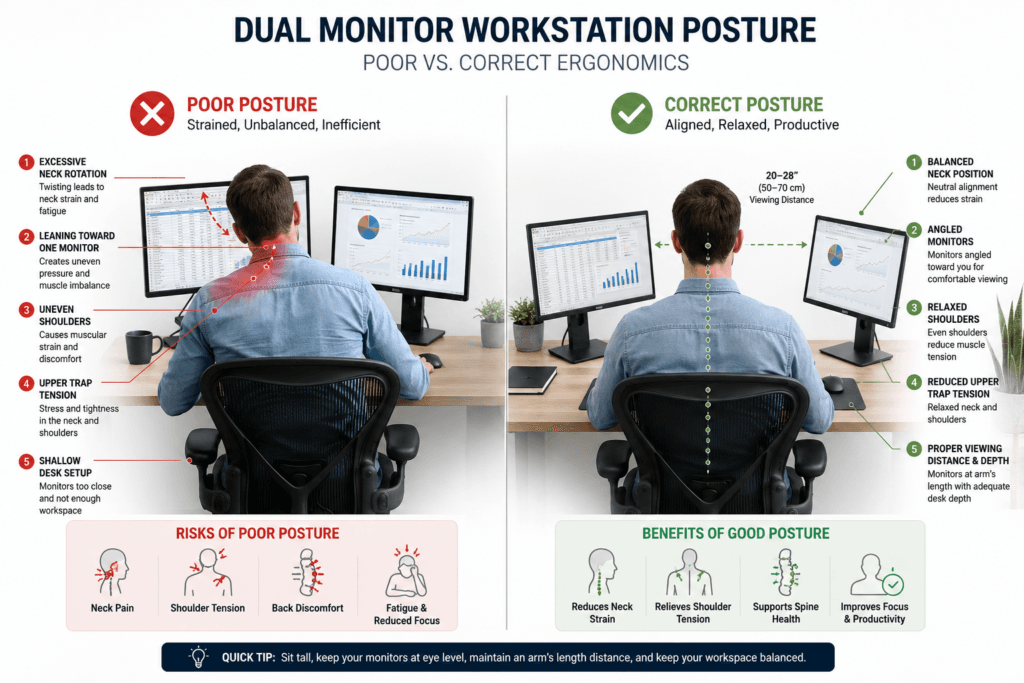
Using two monitors can make multitasking easier and help you work more efficiently. However, it also changes how your neck, shoulders, and eyes move throughout the day.
With two monitors, you tend to rotate your neck more and sit unevenly compared to using a single screen. Over time, this can lead to muscle tension, an uneven shoulder load, and forward head posture—especially during extended computer use.
Common Symptoms of Poor Dual Monitor Ergonomics
Users with poorly positioned dual monitors often experience:
- neck tightness on one side
- upper trapezius tension
- shoulder imbalance
- leaning toward one monitor
- eye fatigue during long sessions
- stiffness after prolonged computer work
These issues accumulate gradually rather than appearing suddenly.
Why It Happens
Dual monitor problems often arise when you fixate on one display for extended periods.
Many users unconsciously:
- rotate toward the primary monitor,
- Users unconsciously rotate toward the main monitor, unevenly angle their shoulders, shift their torsos, or lean forward during focused work.
Repeated neck turning and uneven sitting eventually lead to increased strain on the neck, back, and shoulders.
A shallow desk exacerbates this, as reduced monitor distance increases neck movement and visual strain.
Monitor height alignment also affects how much neck movement occurs during multi-screen work.
How to Reduce Neck Strain in a Dual Monitor Setup
A few workspace modifications can significantly improve comfort.
Recommended adjustments:
- position the primary monitor directly in front of the body
- angle secondary monitors inward slightly
- Reduce excessive monitor spacing.
- maintain a comfortable viewing distance
- Keep your shoulders relaxed while typing.
- Reposition the chair rather than repeatedly twisting the neck.
- Use monitor arms if desk space is limited.
Even with a proper dual-monitor setup, sitting still for long periods can make you uncomfortable.
Movement variation, posture changes, and periodic repositioning are often more sustainable than maintaining a single, perfectly fixed posture all day.
Primary Monitor vs Secondary Monitor Positioning
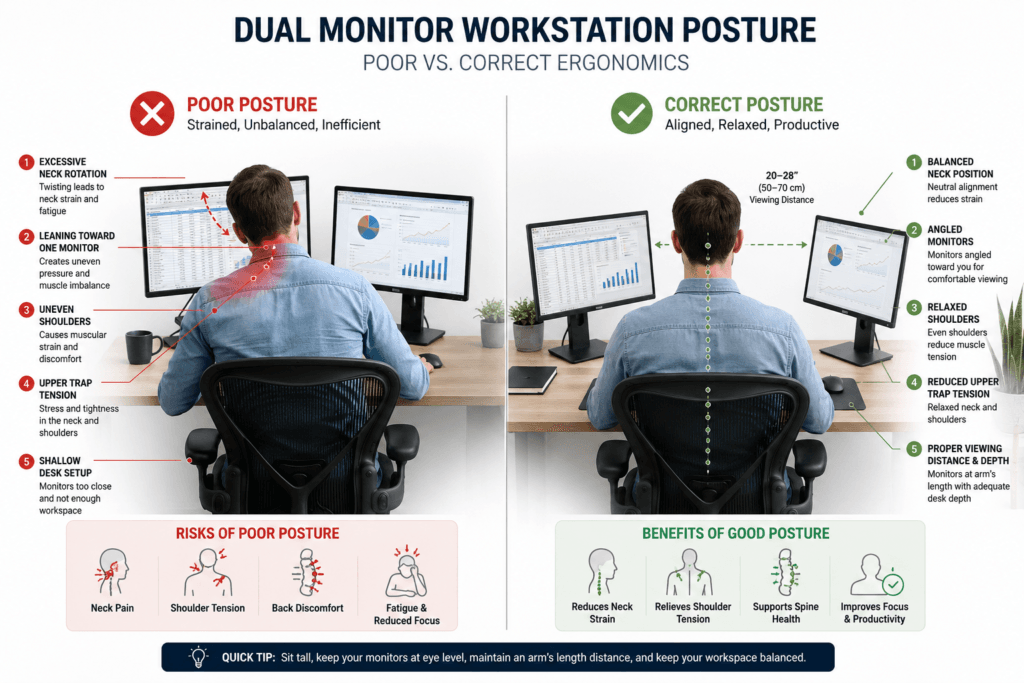
Effective dual monitor ergonomics depend on how frequently each screen is used.
Many people arrange their monitors side by side, even when primarily using one. This often leads to excessive neck rotation and imbalanced posture over time.
Dual monitor layouts also require enough desk depth to maintain comfortable viewing distance.
Optimal ergonomics depend on whether both monitors are used equally or if one functions as the primary screen.
Equal-Use Dual Monitor Setup
If both monitors are used equally throughout the day:
- Center your viewing position between both screens.
- Angle the monitors inward slightly
- Keep the monitor height and distance similar.
- Reduce neck turning by keeping displays closer together.
This setup works well for:
- coding
- financial trading
- multitasking workflows
- editing environments
- monitoring dashboards
Unequal-Use Dual Monitor Setup
If one monitor is used more frequently:
- Place the primary monitor directly in front of you.
- Position the secondary monitor slightly to the side.
- Angle the secondary display inward.
- Avoid rotating constantly toward the secondary screen.
This approach helps your posture in long work sessions.
Your monitor positioning may need adjustment if:
- One side of the neck feels tighter.
- shoulders feel uneven
- You constantly turn toward one screen.
- The mouse arm becomes fatigued.
- posture shifts heavily toward the primary display
Perfect alignment of both monitors is not always ideal.
If most of your work is on one screen, placing your main monitor directly in front reduces neck strain more than centering both screens.
General advice about dual monitors often misses this difference.
Monitor Arms vs Desk Stands (Which Is Better?)
Both monitor arms and desk stands can enhance a dual-monitor desk setup, but they serve different purposes.
Monitor arms clamp to the Desk, then keep screens off the surface. They conserve space and allow swift adjustments in height, tilt, and reach. That makes them excellent for adjusting ergonomics, especially when you have two monitors.
Desk stands rest on the desk surface. Plain, steady, and simple to get in place. They offer less adjustability and areuserdon’todon’ton’t’ton’tmuCompdon’tndon’tndCompdon’tndon’tn
Compdon’tndon’tn
| Feature | Monitor Arms | Desk Stands |
| Adjustability | High | Limited |
| Desk Space | Saves space | Uses desk space |
| Stability | Good (if quality arm) | Very stable |
| Ease of Setup | Moderate | Very easy |
If flexibility and posture control matter most, monitor arms are usually better. If simplicity and stability are your priority, desk stands are still a solid choice.
Ultrawide vs Dual Monitor Ergonomics
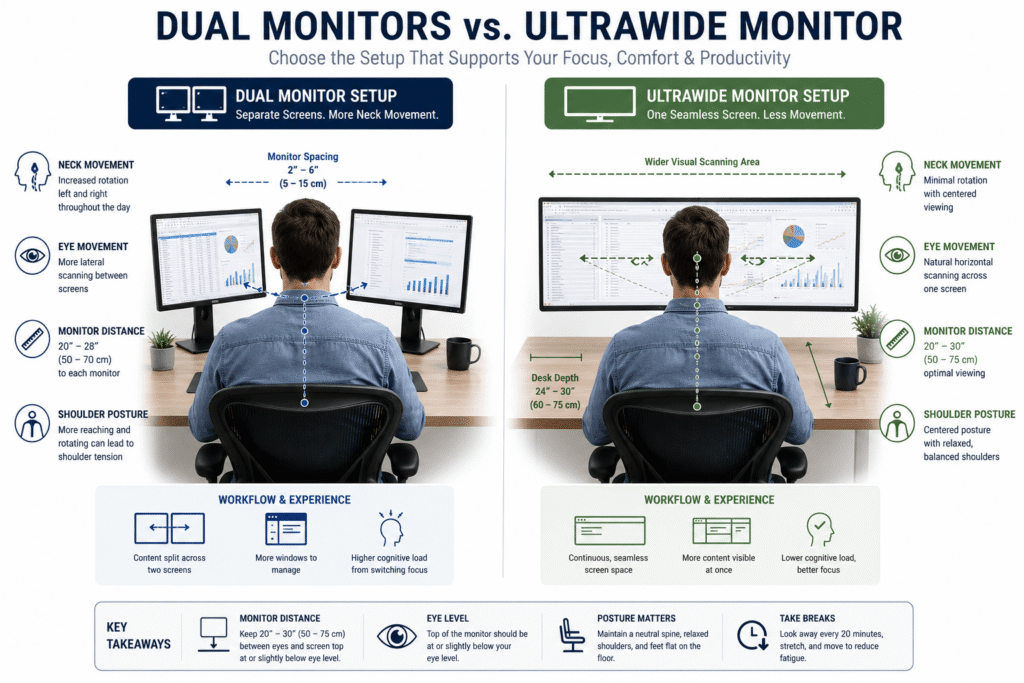
Both ultrawide monitors and dual-monitor setups help you get more done, but each affects your posture, eye movements, and overall comfort differently.
Which one works better for you depends on a few things:
- workflow type
- desk depth
- viewing distance
- neck movement habits
- and available wo
Isn’t it perfect for everyone?
Ergonomic Advantages of Dual Monitors
Dual monitors come with a few key benefits:
- flexible screen organization
- easier multitasking separation
- independent monitor positioning
- customizable layouts
This setup is especially useful for:
- office multitasking
- coding
- monitoring dashboards
- spreadsheet workflows
- streaming setups
Ergonomic Challenges of Dual Monitors
But using two monitors can also cause:
- Repetitive neck rotation
- shoulder asymmetry
- uneven viewing patterns
- mouse reach distance
- posture imbalance
These problems are easier to notice if your monitors are too far apart or if you spend a lot of time looking at just one screen.
Ergonomic Advantages of Ultrawide Monitors
Ultrawide monitors can help cut down on:
- bezel interruptions
- excessive head turning between separate displays
- Monitor alignment inconsistencies
Many people also think ultrawide monitors feel smoother to use when working on:
- video editing
- creative workflows
- timeline-based work
- immersive gaming
Ergonomic Challenges of Ultrawides
On the flip side, big ultrawide screens can lead to more:
- horizontal eye scanning
- lateral neck movement
- visual fatigue on shallow desks
- viewing-angle discomfort
If your Desk is too shallow, an ultrawide monitor might feel overwhelming since the screen sits so close to your face.
Neither ultrawide nor dual monitors are always more ergonomic than the other.
A well-set-up pair of monitors can be more comfortable than an ultrawide if it’s placed well. But if you have a deep desk, an ultrawide might help you turn your neck less than dual monitors that are spaced far apart.
How you set up your workspace matters more for comfort than the type of monitor you choose.
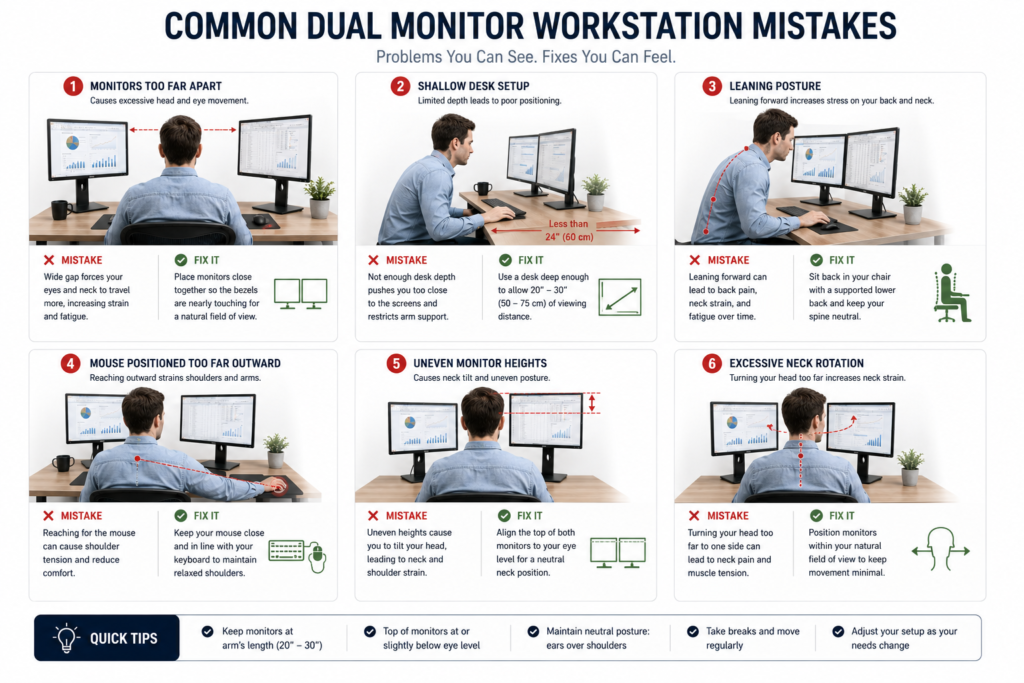
Common Dual Monitor Ergonomic Mistakes
Even with quality monitors and ergonomic furniture, your setup still feels uncomfortable if it leads to excessive neck movement, uneven sitting, or an improper screen distance.
Most dual-monitor issues result from poor positioning, not from monitor quality.
Placing Monitors Too Far Apart
Monitors set too far apart cause repeated neck turning and muscle tension on one side during long work sessions.
Keep monitors close enough to minimize head turning, but far enough apart to see both screens clearly.
Centering Between Unequal-Use Monitors
People often sit between the two screens, even if one is used more than the other.
This often leads you to turn your neck toward the main screen repeatedly throughout the day.
If you use more than one monitor, place them directly in front of you.
Using Dual Monitors on a Shallow Desk
A shallow desk brings monitors closer, making your workspace feel cramped.
This can lead to problems like:
- forward leaning
- eye strain
- excessive neck movement
- cramped keyboard positioning
Positioning Monitors Too Close to the Face
If you put large monitors too close to your face, you might notice more:
- eye fatigue
- neck tension
- visual overload
- excessive scanning movement
Larger screens should be set farther back for comfortable viewing.
Mouse Positioned Too Far Outward
If your mouse is too far from your keyboard, you might experience:
- shoulders abduct outward
- Upper traps remain tense.
- arm fatigue increases
This issue is common with wide dual-monitor setups
Uneven Monitor Heights
When your monitors are set at different heights, you might notice more:
- neck tilting
- uneven posture loading
- visual discomfort
These problems worsen the longer you work at your Desk.
Some ergonomic problems develop slowly and might not cause discomfort right away.
A seated setup feels comfortable initially, but still creates cumulative strain after several hours of repeated monitor switching and asymmetrical posture.
FAQs About Dual Monitor Setups
Is a dual monitor desk good for your back posture?
Yes, when set up correctly. A good dual-monitor desk will keep your head centered, shoulders relaxed, and spine straight. But improper body placement can damage posture.
How wide does a desk need to be for 2 monitors?
The vast majority of these require a desk width of 55–60 inches. Larger monitors might require a bigger space, allowing you to relax, stretch your legs, and move around.
And should these both be It’s
It’s useful, but not a prerequisite. Same-size monitors are simpler to line up, whereas mixed-size monitors are more successful when the larger screen is positioned front and center.
Cause of Neck and Shoulder Strain from Dual Monitors
Yes, screens that are spaced too far apart or positioned too high or low. Proper alignment reduces neck strain.
Is a two-monitor vertical setup ergonomic?
It can be. Vertical screens are great for reading and coding, as long as the main viewing area remains at or near eye level.
Final Ergonomic Setup Checklist
- The Desk is wide and deep enough for both monitors.
- The Primary monitor is right in your face.
- Screens positioned close together.
- The monitors are placed at or slightly below eye level.
- An arm’srm’s’srm’s lavidarm’scerm’sce’scece’sce.
- Center the main screen, keyboard, and mouse.
- Chair raised so feet are flat on the floor.
This handy checklist will guide you in setting up a dual-monitor desk that provides comfort, safety, and support for prolonged work without pain.