
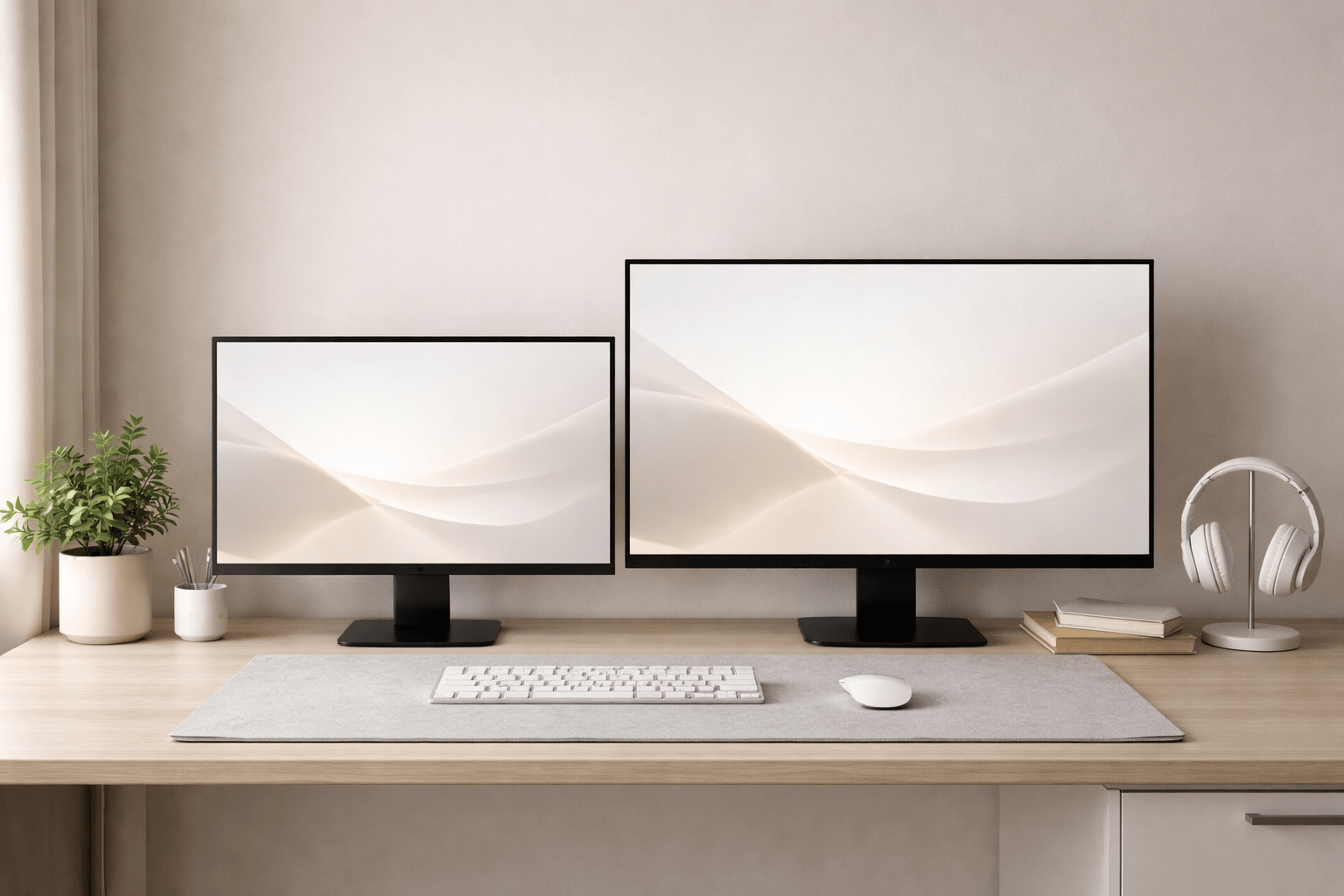
Quick Answer
Choose a 24-inch monitor if you sit close to your screen or have a small desk. Pick a 27-inch monitor with 1440p or higher resolution if you have enough space and want to multitask more easily. The best option depends on your desk, how far you sit from it, and your daily tasks, not just the size of your desk.
Table of Contents
Introduction: Why Choosing the Right Monitor Size Can Be Confusing
While it might seem straightforward to compare 24-inch and 27-inch monitors, the choice often becomes challenging when real-world factors are considered.
They struggle because:
- Their desk isn’t designed for the size they picked
- Their viewing distance is wrong.
- Or they upgrade to a bigger screen without understanding the importance of resolution and ergonomics.
For these reasons, a larger monitor can sometimes surprisingly feel less comfortable than a smaller one.
You might already be dealing with:
- Eye strain after a few hours
- Constant tab switching
- A setup that feels either cramped or overwhelming
This guide will help you pick a monitor that fits your work style, not just looks good.
24-inch vs 27-inch Monitor: The Differences That Actually Affect Your Day
Comparison Table (Practical View)
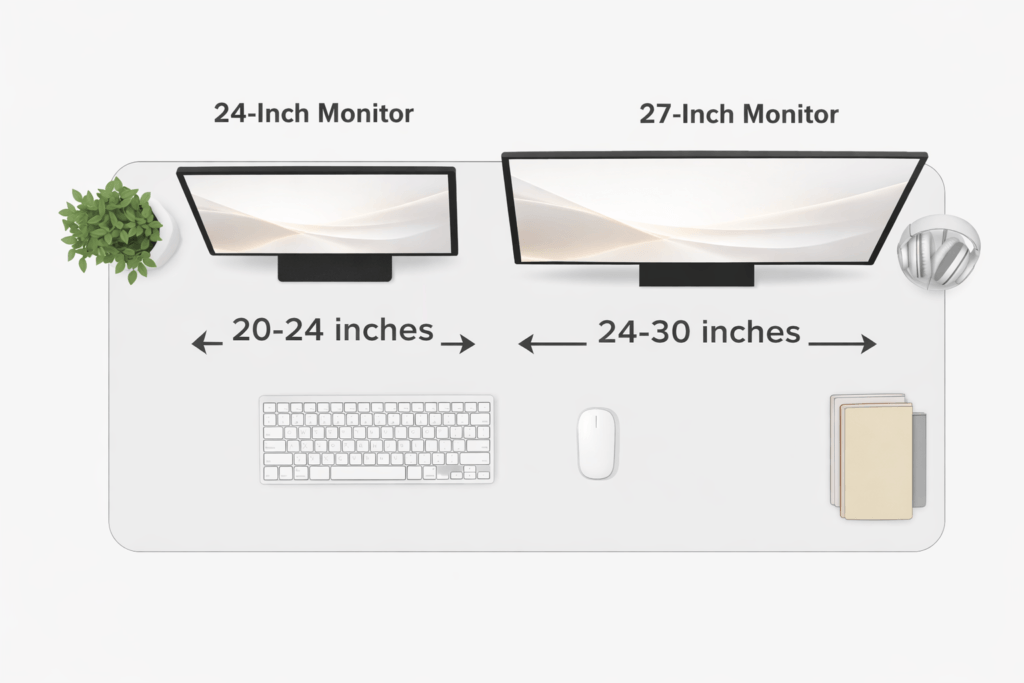
| Ideal Viewing Distance | 20–24 inches | 24–30 inches |
| Desk Depth Needed | ≤ 60 cm | ≥ 70 cm |
| Productivity | Focused | High multitasking |
| Eye Comfort | Better for close use | Better with proper spacing |
| Gaming | Competitive advantage | Immersive experience |
| Resolution Sweet Spot | 1080p | 1440p / 4K |
| Learning Curve | Easy | Needs adjustment |
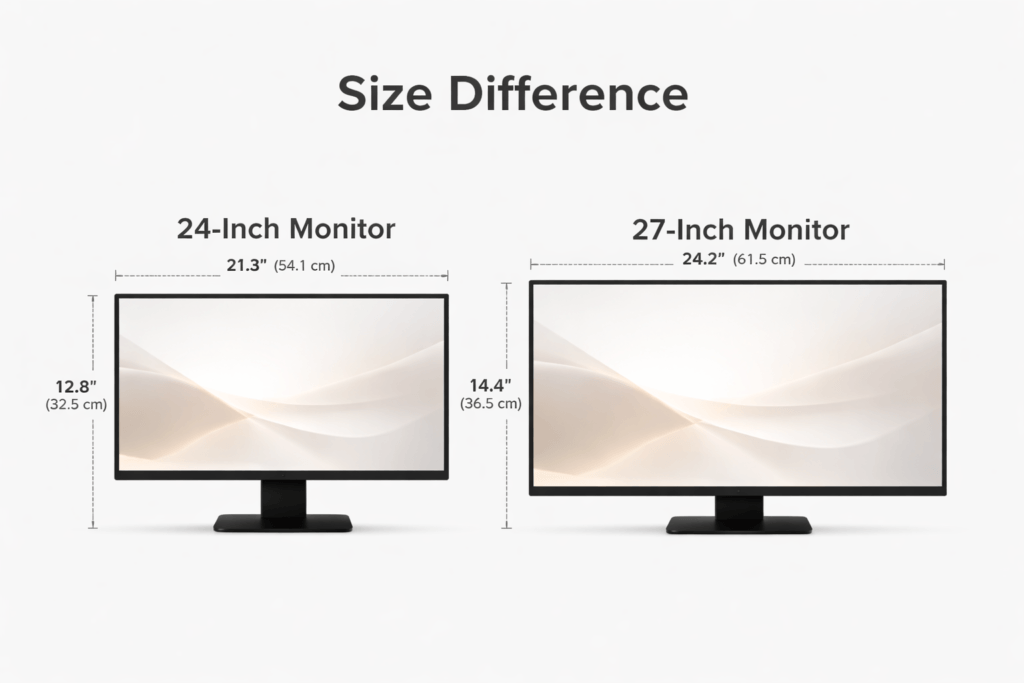
What This Means in Practice
- If your screen feels overwhelming, it’s usually a distance issue, not a size issue.
- If your workflow feels slow, it’s often because you don’t have enough screen space.
- If text looks strange, it’s probably a resolution mismatch. Rather than asking, “Which is better?”, consider: “Which one fits my current setup without forcing compromises?”
When a 24-inch monitor is the smarter choice
A 24-inch monitor is best when your workspace is small, and you sit close to the screen.
You should strongly consider a 24-inch if:
- Your desk is shallow, which is common in apartments or small offices.
- You sit within arm’s reach of your screen.
- You prefer a distraction-free workspace.
- You play fast-paced competitive games.
Why does it work better in these cases?
- Everything stays within your natural viewing zone.
- You don’t have to move your head all the time.
- Text looks sharper at 1080p
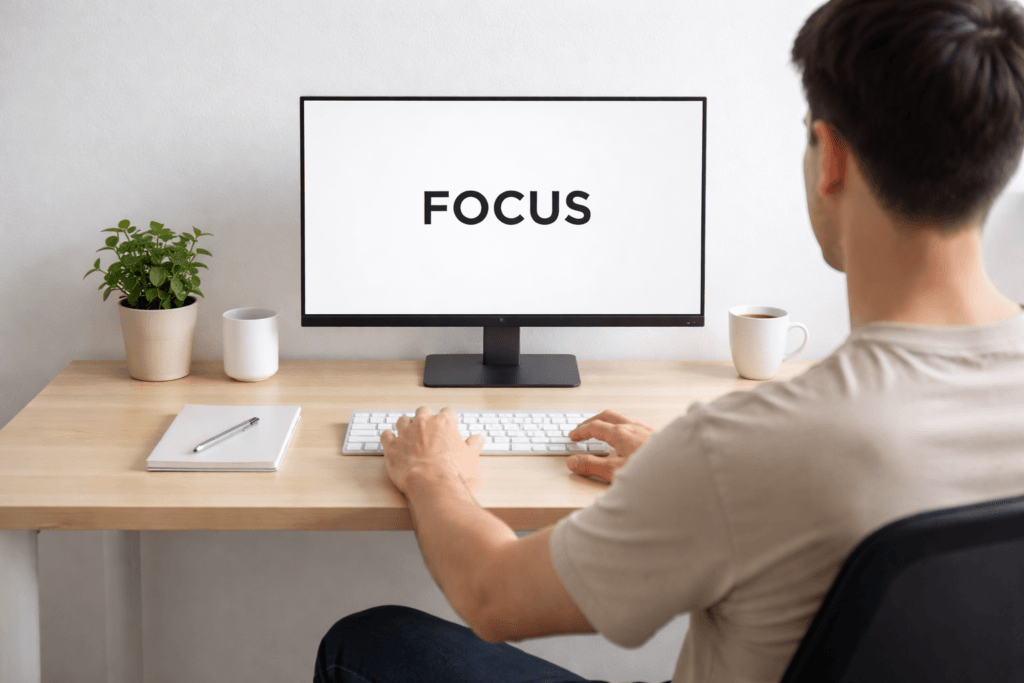
Real-world example
If you work on a standard desk with limited depth, a 27-inch monitor will push your eyes to scan too much. A 24-inch keeps everything contained and efficient.
When a 27-inch monitor actually improves your workflow
A 27-inch monitor is right when you have space to use it comfortably and need to multitask.
You should choose a 27-inch if:
- You regularly use multiple apps side-by-side.
- You work with spreadsheets, code, or design tools.
- Your desk lets you sit at least 2-2.5 feet away from the screen.
Where it makes a real difference
- You can compare documents without switching tabs.
- You reduce interruptions in your workflow.
- You feel less cramped while working.
Important reality check
A 27-inch monitor is not plug-and-play.
If you:
- Sit too close
- Use low resolution
- Don’t adjust scaling.
It quickly becomes uncomfortable.
How Monitor Size Impacts Productivity and Eye Comfort
Productivity: More Space vs Better Focus
- 27″ helps when your work involves multiple inputs and outputs
- 24″ helps when your work requires attention and simplicity
Key insight:
More screen space only helps productivity if you really use it.
Eye Comfort: What Actually Causes Strain
Eye strain is usually caused by:
- Screen too close
- Poor text clarity
- Incorrect brightness
It’s not the monitor’s size itself.
A key rule
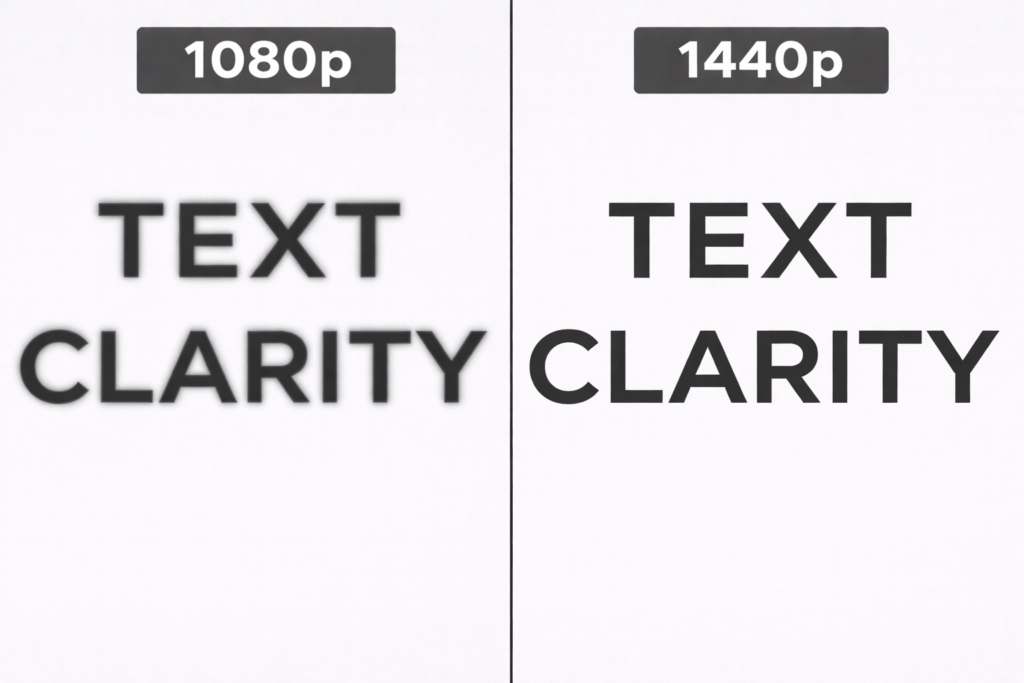
- Most people overlook: 24-inch displays combined with 1080p deliver sharp, comfortable viewing.
- A 27-inch 1080p monitor can look a bit blurry and may cause eye fatigue over time.
If you choose a 27-inch monitor, consider 1440p resolution (2560×1440) as the standard, not just an upgrade. This higher pixel count keeps text and images crisp and prevents the screen from appearing blurry at larger sizes.
A Simple Decision Framework You Can Actually Use
Instead of guessing, try these steps:
Step 1: Measure Your Desk Depth
- Stick with a 24-inch monitor if your desk is less than 60 cm deep.
- Select a 27-inch monitor if your desk is more than 70 cm deep.
Step 2: Check Your Natural Sitting Distance
- If you sit close to the screen, choose a 24-inch monitor.
- Pick a 27-inch monitor if you naturally sit farther back.
If you’re considering expanding your workspace, a dual-monitor setup can be a game-changer. Learn how to optimize your dual-monitor desk setup with our guide.
Step 3: Identify Your Work Pattern
| Constant tab switching | 27-inch |
| Deep focus work | 24-inch |
| Multitasking (2–3 apps) | 27-inch |
| Minimal, single-task work | 24-inch |
Step 4: Avoid These Common Mistakes
- Picking a monitor size before measuring your desk
- Buying a bigger screen without upgrading the resolution
- Copying someone else’s setup without considering your own workspace
Practical recommendations based on real use cases
Office Work & Productivity

Choose a 27-inch monitor with 1440p resolution if your workspace allows.
It makes your workflow smoother than most other upgrades.
Gaming
- Competitive (FPS, esports) → 24-inch
- Story-driven / immersive → 27-inch
Budget-Conscious Setup
A 24-inch monitor with 1080p resolution still gives you the best value without sacrificing quality.
Creative Work
A 27-inch monitor with higher resolution gives you the clarity and workspace you need. workspace needed.
If You’re Unsure
Stick with 24-inch unless your setup clearly supports 27-inch.
Make safe decisions rather than rushed upgrades.
Common Problems and How to Fix Them Quickly

Eye Strain After Upgrading
Cause: Sitting too close to a larger screen
Fix: Move the monitor back or reduce scaling
Neck Pain
Cause: Screen size exceeds your viewing comfort
Fix: Adjust height and distance, or reconsider size
To avoid neck strain and improve comfort, it’s crucial to set your monitor at the right height. Learn more about ideal monitor height and positioning.
Blurry or Washed-Out Text
Cause: Low resolution on a large display
Fix: Upgrade resolution or scale properly
Desk Feels Overcrowded
Cause: Large monitor in a limited space
Fix: Use a monitor arm or switch. Your setup matters more than your monitor’s size.
Even the right monitor can feel wrong if it’s positioned poorly.
Quick Setup Checklist
- Top of screen at or slightly below eye level
- About an arm’s length distance
- No direct glare on the screen
- Comfortable brightness (not maxed out)
Small Adjustments That Make a Big Difference
- Using a monitor arm to reclaim space
- Adjusting scaling instead of zooming apps
- Keeping your posture neutral
If your setup still feels off, it’s worth reviewing the ideal monitor height and positioning. If you don’t have access to an internal guide, search for “ergonomic monitor setup tips” or consult reputable sources such as the Mayo Clinic or OSHA for clear instructions.
Conclusion: The Right Choice Depends on Fit, Not Size Alone
The real decision isn’t 24 vs 27.
It’s:
- How much space do you have
- How far do you sit
- How you actually work every day
Clear Takeaway
- Choose 24-inch if your setup is compact or if you sit close.
- Choose 27-inch (1440p) if your workspace supports it and you need more room.
Don’t upgrade your monitor to follow trends.
Upgrade it to remove friction from your work.
Next Step
If your setup feels uncomfortable or slow, the problem is rarely just your monitor.
Take a few minutes to look over your entire workspace.
Or explore our guide on ergonomic desk setup for productivity to fix the root of the problem, not just the screen.
FAQ Section
Is a 24-inch or a 27-inch better for work?
27-inch is better for multitasking, but only if your desk and viewing distance support it. Otherwise, a 24-inch provides a more comfortable experience.
Is a 27-inch desk too big for a small desk?
Yes. On shallow desks, it can cause eye strain and constant head movement.
Is 1080p good for 27-inch monitors?
Not ideal. It often results in less sharp text. 1440p is recommended.
What is the best viewing distance for a 27-inch monitor?
Around 24 to 30 inches for optimal comfort.
Which monitor size is best for eye comfort?
The one that matches your viewing distance and resolution. Poor setup causes more strain than size itself.
Quick Decision Checklist
- Small desk or close seating → 24-inch
- Need multitasking space → 27-inch
- Using a 27-inch? → Ensure 1440p
- Feeling discomfort? → Check distance before changing size