
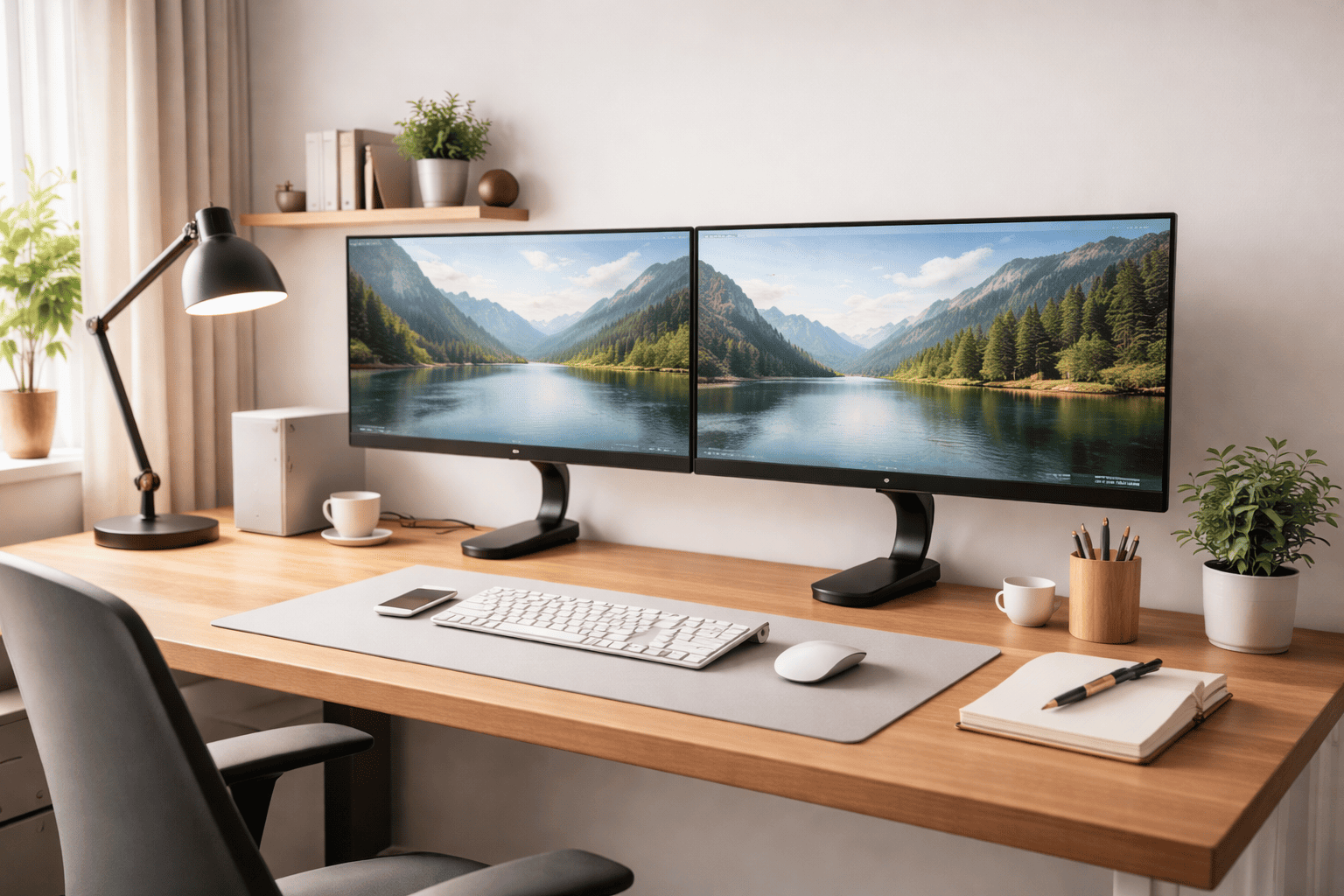
A dual monitor setup desk can help you work faster and more comfortably—but only if set up correctly. Two screens at the wrong height or distance can quickly cause neck pain, eye strain, and poor posture. Our guide below covers desk height, screen spacing, and alignment to maintain natural posture for relaxation while working, studying, or gaming. It provides step-by-step advice for beginners, so you can create a setup that feels balanced and comfortable for long daily use.
Table of Contents
What Is a Dual Monitor Setup Desk?
A dual monitor setup desk configuration that enables you to run two computer screens at the same time. You can spread your activities across two screens rather than toggling between windows on a single screen. These tasks are sped up and made easier in situations when viewing several things at once is necessary for you.
Offices are practically empty, so unless you work in a tech job, the odds this is not even available to you at present. Dual monitors are a hit with remote workers, but they’re also loved by programmers and designers, traders too, and of course, students or anyone who spends quite a bit of time on the computer. For instance, you can have one screen display emails or notes and the other feature your main work. This limits the sense of perpetual switching, so you can focus.
The “desk” part is important. A good dual monitor setup desk should be wide and deep enough—and sturdy enough—to accommodate two monitors mounted side by side at the proper height and distance. A few people choose to set up both monitors flat on the desk with stands. Others employ a screen arm, which attaches to the desk and supports the screens in midair. Monitor arms free up space and simplify height and angle adjustments.
Two flat-screens without the right arrangement can strain necks and eyes. That’s why knowing what a dual monitor setup is and how it works is the first step when you want your workspace to be ergonomic and comfortable.
Benefits of a Proper Dual Monitor Desk Setup
A good two-monitor desk setup can make everyday computer work a little bit easier and more comfortable. Among the greatest rewards gained is a productivity spurt. The two screens allow you to see more information simultaneously. Say, you may have an open spreadsheet on one screen while browsing or writing an email with the other. This also cuts down on frequent tab-hopping and gets you back into work quicker.
There is also less eye and neck strain. When monitors are at the right height and distance, your head tracks straight ahead instead of craning too far left or right. It helps eliminate neck strain and tired eyes, especially when binge-watching a show.
A properly set-up jet also propels good posture. You can also raise your monitors to eye level, and keep your neck straight and your shoulders comfortable. This is far better than hunching forward or looking down at a low screen. Good posture can eventually decrease back pain and eliminate daily fatigue.
People who regularly reference documents, charts, or code in real life say they tend to feel less tension when using two monitors because everything seems more organized. With the right setup, a dual monitor desk isn’t just about convenience: it’s about working smarter and being more comfortable.
Ideal Desk Size for Dual Monitors
The right desk size is crucial for a comfortable dual monitor setup. A small desk can push your monitors too close together or too close to your eyes, leading to an aching neck and tired eyes.
For a typical dual monitor system, the minimum desk width should be 48 inches. This provides ample room for two screens side-by-side. For those with bigger screens, or who want more wiggle room for accessories (speakers, a laptop), 60 inches is a more comfortable desk size.
Desk depth also matters. 24 inches in depth is the minimum for small monitors; 27–30 inches is fine. Having more depth makes it easier to keep monitors at a comfortable reading distance while also having a place for your keyboard and mouse.
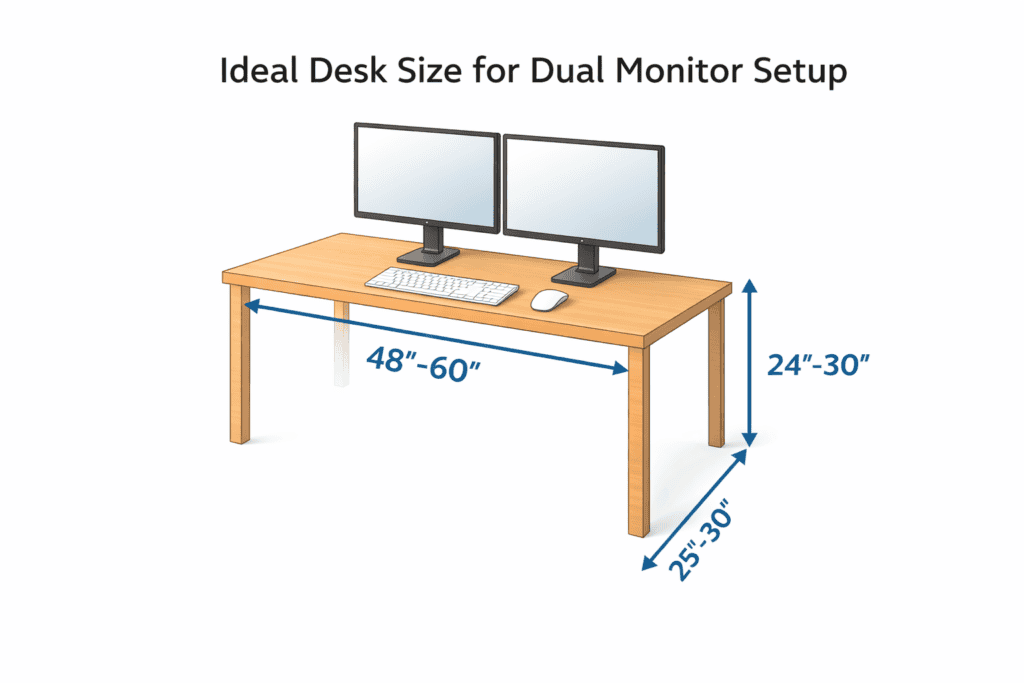
Monitor Size vs Desk Size (Simple Guide)
| Monitor Size (Each) | Recommended Desk Width | Recommended Desk Depth |
| 22–24 inches | 48–55 inches | 24–27 inches |
| 27 inches | 55–60 inches | 27–30 inches |
| 32 inches | 60–70 inches | 30 inches or more |
Desk height should also work for the correct size. Your desk should also match the height of your chair and monitor for the right posture. You can learn more about this in our guide on standard desk height in inches, which explains how desk height affects comfort and ergonomics.
Dual Monitor Ergonomic Layout Options
The proper dual monitor configuration is just as crucial to select as the perfect desk size. Your screen setup influences your neck movement, eye comfort, and general posture. The most common ergonomic arrangements are described below in plain language so you can decide what’s right for your everyday work.
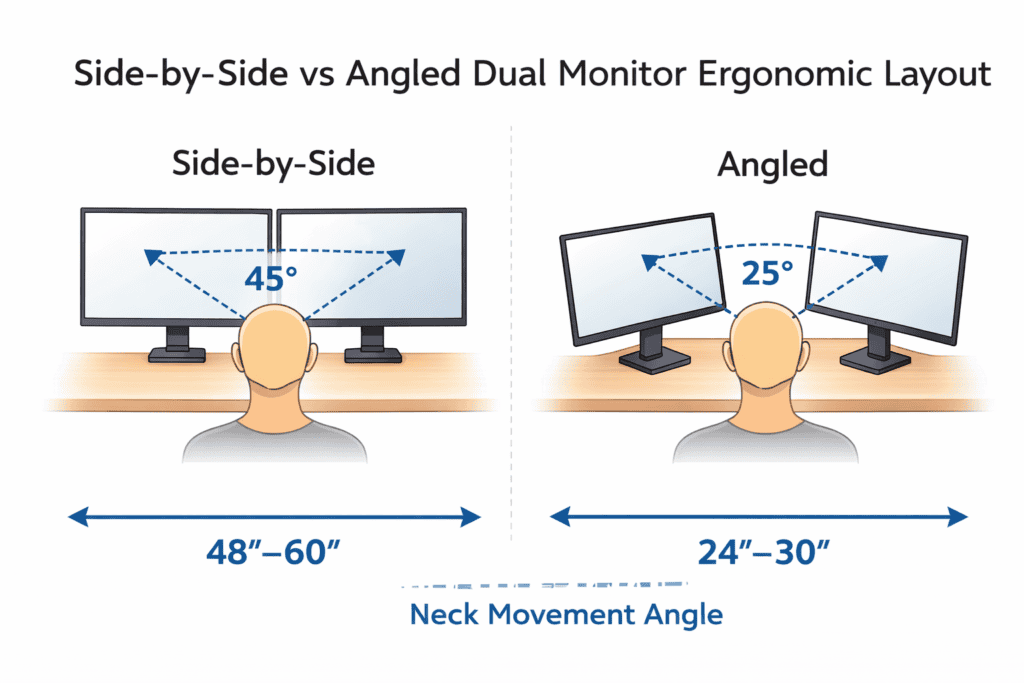
Side-by-Side Monitor Setup
This is the primary dual monitor setup. Both monitors are on top of each other, side by side, at the same level. It works well with one of the screens being your primary and the other used for reference, say email, chat, or notes.
Not the right fit for everyone, though. If both screens get a lot of use, your neck may swivel back and forth too much. Repeating this neck rotation for hours strains your muscles and may stiffen or cause them to ache. To minimize this problem, tilt both monitors inward slightly and keep the primary monitor straight in front of you.
Angled “V” Layout
Both monitors in the angled “V” design are tilted toward you, creating a shallow V. Each of these keeps a screen within your natural line of sight, but shortens the distance your neck has to turn.
For those who switch between the displays a lot – like designers, analysts, and everyone else multitasking regularly – it’s incredibly ergonomic. Telling your eyes, and not just your neck, to make the turn is healthier for long work sessions.
Vertical + Horizontal Setup
In this data arrangement, one monitor is in its standard position, and the other is turned to stand vertically. It’s great for reading long documents, coding, or viewing wide websites.
The vertical screen sits a little off-center; the horizontal one stays in the middle. This is less taxing to the eyes because, let’s face it, you do most of your work straight forward, and this vertical monitor is used as a support rather than a constant viewing screen.
Laptop + Dual Monitor Desk Setup
A laptop is then utilised here, with one or two external monitors. Common Mistake: The lazy way is to leave the laptop flat on the desk. Then you will be looking downward.
If you want better ergonomics, raise the laptop to eye level and use it as a second screen. Your primary external display should be placed in front of you. That setup is great for people who are remote workers/laptop types but who want a full desktop-style experience.
When to Avoid Side-by-Side Layout
If each monitor is going to be used 50 percent of the time every day, avoid straight side-by-side placement. Glancing around may not seem like much at first, but over time, continuous head turning can result in neck pain and fatigue. In that situation, an angled or blended position is better.
The optimal arrangement is the one that keeps your head straight, your eyes at ease, and your posture chill.
Ideal Monitor Height, Distance & Angle
Ensuring the proper monitor height, distance, and angle is an important element of a comfortable dual monitor desk setup. Start with the monitor height. The top of each screen, that is to say, should be at eye level or just below it when you’re sitting up straight. This maintains your neck in a neutral position and stops you from tilting your head back or forth. If there’s just one monitor you use more frequently, set that screen in front of you and adjust its height first.
Next is viewing distance. Both monitors should be placed approximately 20 – 30 inches away from your eyes (this is about an arm’s length). If the screens are too close, your eyes will have to work harder to focus. If you are too far back, you might lean forward without realizing it. Being the perfect distance away relieves eye strain and promotes better posture.
Finally, adjust the monitor angle. Incline the screen backward 10–20 degrees each. This angle coincides with the natural line of sight and minimizes reflective glare from lights. Don’t use flat, vertical screens, which tend to draw the neck into a strange angle.
For a more in-depth discussion and for step-by-step instructions to set up these guidelines, check out our full guide on Ideal Monitor Height, which goes into more detail on these rules.
Dual Monitor Setup Desk for Neck, Eye & Back Health
A bad dual monitor setup can mess up your neck, eyes, and back. One such problem is the rotation in the neck. The head just keeps turning side to side when you have monitors spaced too far apart. Repeating this motion can cause the neck to become stiff and painful. Keeping that main screen in the center does its part to minimize that.
Eye fatigue is another problem. Your eyes are forced to adjust as the height, brightness, or distance from the screen changes. This can lead to tired eyes, dryness, and even headaches — particularly during long work sessions. The height and distance adjustment for the monitor could be matched to enable the user’s eye movement more smoothly and naturally.
It also affects your shoulders and upper back. Shoulders can lift or slump without you even realizing when screens are too high, for example, or too low. This causes strain and upper back pain.
If you frequently feel fatigued, dry-eyed, or tight after time on screen, have a look at our guide to Dry Eyes, Headache & Fatigue to learn more about the role that desk ergonomics play.
Monitor Arms vs Desk Stands (Which Is Better?)
Both monitor arms and desk stands can enhance the dual monitor desk setup, but they do different things.
Monitor arms clamp to the desk, then keep screens off the surface. They conserve space and permit swift height, tilt, and reach adjustments. That makes them excellent for adjusting ergonomics, especially when you have two monitors.
Desk stands rest atop the desk surface. Plain, steady, and simple to get in place. They provide less adjustability and are good for users who don’t move a lot.
Quick Comparison
| Feature | Monitor Arms | Desk Stands |
| Adjustability | High | Limited |
| Desk Space | Saves space | Uses desk space |
| Stability | Good (if quality arm) | Very stable |
| Ease of Setup | Moderate | Very easy |
If flexibility and posture control matter most, monitor arms are usually better. If simplicity and stability are your priority, desk stands are still a solid choice.
Common Dual Monitor Desk Mistakes to Avoid
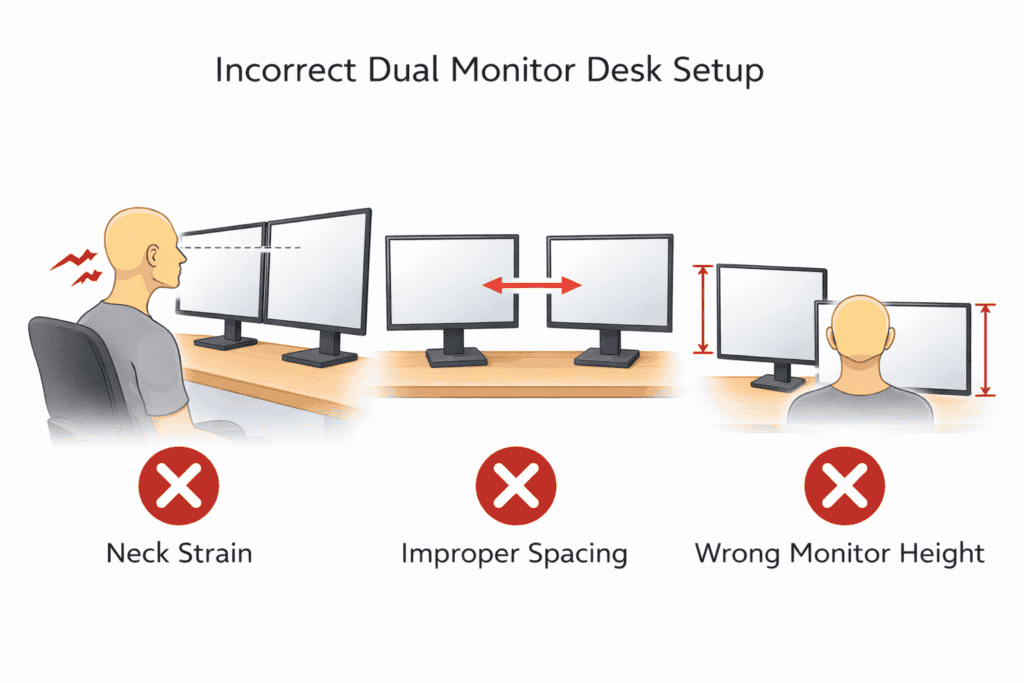
Simple flaws account for a lot of dual monitor malfunctions. A commonplace problem is leaving screens too far apart. With the monitors so far apart from each other, you keep twisting your neck to the left and right. Eventually, this leads to neck stiffness and shoulder discomfort. Keep both screens close, and center the main one in front of you.
Another error is mismatched monitor heights. If one of the screens is higher than the other, your eyes and neck keep making these adjustments. This results in eye strain and bad posture. Both of your monitors should be the same distance to generally maintain a uniform height—this will help with any other adjustments. The rule is that the top quarter or third of both screens should be at or just below eye level (you want to be able to look up with your eyes, not your whole head), and around an arm’s length away at least.
A desk that is too shallow can be a biggie, too. Pursuit of narrow desk depth leads to monitors too close to your face. This makes you lean back or squint. An extra-deep desk provides the right viewing distance and encourages you to sit up straight. These are minor problems that carry a high price in the form of discomfort and long-term health.
FAQs About Dual Monitor Setup Desks
Is a dual monitor desk good for your back posture?
Yes, when set up correctly. A good dual monitor desk will have you with your head centered, shoulders relaxed, and spine straight. But improper body placement can damage posture.
How wide does a desk need to be for 2 monitors?
The vast majority of these require a minimum desk width of at least 55–60 inches. Larger monitors might require a bigger space, allowing you to relax, stretch your legs, and move around.
And should these both be the same size?
It’s useful, but not a prerequisite. Same-size monitors are simpler to line up, whereas mixed sizes are more successful when the larger screen is positioned front-and-center.
Cause of Neck and Shoulder Strain from Dual Monitors
Yes, screens that are spaced too far apart or positioned too high or low. Proper alignment reduces neck strain.
Is a two-monitor vertical setup ergonomic?
It can be. Vertical screens are great for reading and coding, as long as the main viewing area remains at or near eye level.
Final Ergonomic Setup Checklist
- The Desk is wide and deep enough for both monitors.
- The Primary monitor in a position right in your face.
- Screens positioned close together.
- The top of the monitors is placed at or slightly below eye level.
- An arm’s length away viewing distance.
- Center the main screen, keyboard, and mouse.
- Chair raised so feet are on the floor, flat on the ground.
This handy checklist will guide you in setting up a dual monitor desk that provides comfort, safety, and support for prolonged work periods without pain.