
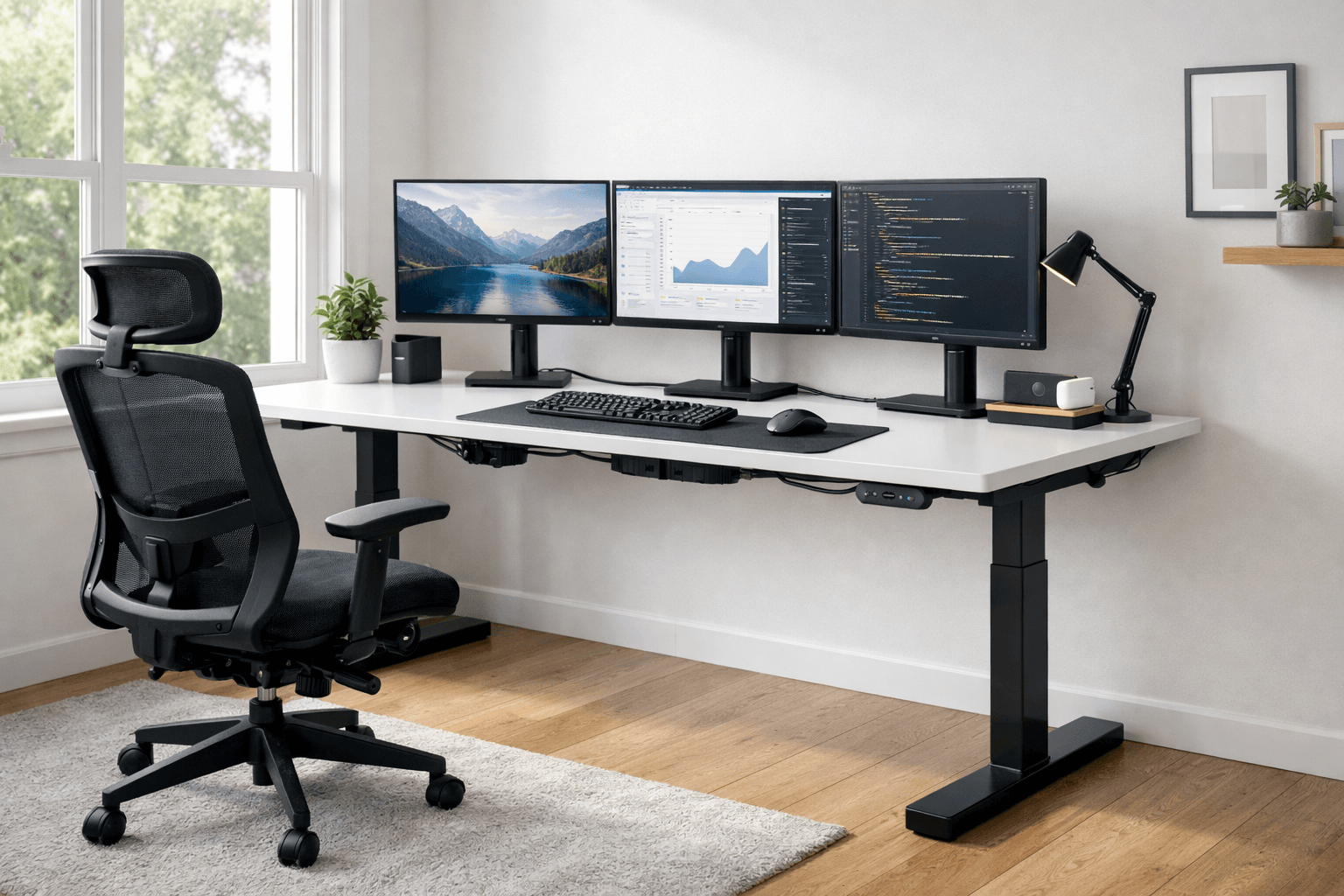
Imagine you’re a designer starting your morning. You drag a client’s logo from one screen to another, review your specs without minimising anything, and tweak your layout while your email stays open on a second display. Working this way with two or three monitors makes your work much easier. You can keep many windows open, compare documents, or monitor data without switching between screens.
However, switching to a standing desk often brings up a new concern.
“Can my desk hold all these monitors?”
“Will the desk shake when I raise it?”
“Do I need a stronger desk?”
These questions are common. Many people buy a standing desk and later realise their monitors make it unstable or crowded.
A wobbly desk disrupts focus. Moving screens strain your eyes and neck.
Before diving into the details, it’s worth noting that standing desks can work well with multiple monitors. To achieve this, you just need the right size, enough strength, and a proper setup. Let’s look at how to make that happen.
Here is a quick preview of what you need to do for a stable and comfortable setup:
– Choose a desk that fits your equipment and space.
– Make sure your desk can handle the total weight of your monitors and accessories.
– Plan your monitor arrangement for comfort and productivity.
– Set up cable management so nothing gets pulled or tangled as the desk moves.
– Adjust your monitor height and angle to protect your neck and eyes.
Let’s walk through each step to ensure you build the ideal Workspace.
In this guide, you will learn:
- Whether a standing desk can support multiple monitors
- The ideal desk size for two or three screens
- How much weight a desk should handle
- How to prevent wobbling
- The best monitor placement for comfort
- Common mistakes to avoid
Let’s create a workspace that is stable, comfortable, and helps you get more done.
Can a Standing Desk Hold Multiple Monitors?
Yes, most modern standing desks can hold two or even three monitors. However, not all desks are made the same way.
Some desks are designed for light use, such as a laptop and a small screen. Others are made with stronger frames and motors that can lift heavy equipment.
If you place several monitors on a weak desk, you may notice problems like:
- The desk is shaking while typing.
- The desktop is bending slightly.
- Slow or noisy motors
- Uneven lifting
These problems can make your Workspace uncomfortable.
A sturdy standing desk should feel stable whether you’re sitting or standing. It should move smoothly and not sway from side to side.
Before choosing a desk, always check three things:
- Weight capacity
- Frame strength
- Desk width
These factors determine if the desk can safely support your setup.
Ideal Desk Size for Multiple Monitors
Desk size is one of the most important things to consider when using multiple screens.
If the desk is too small, your monitors will feel crowded. You may have little space for your keyboard, mouse, or notebook.
A larger desk provides better balance and comfort.
Standing Desk for Dual Monitors
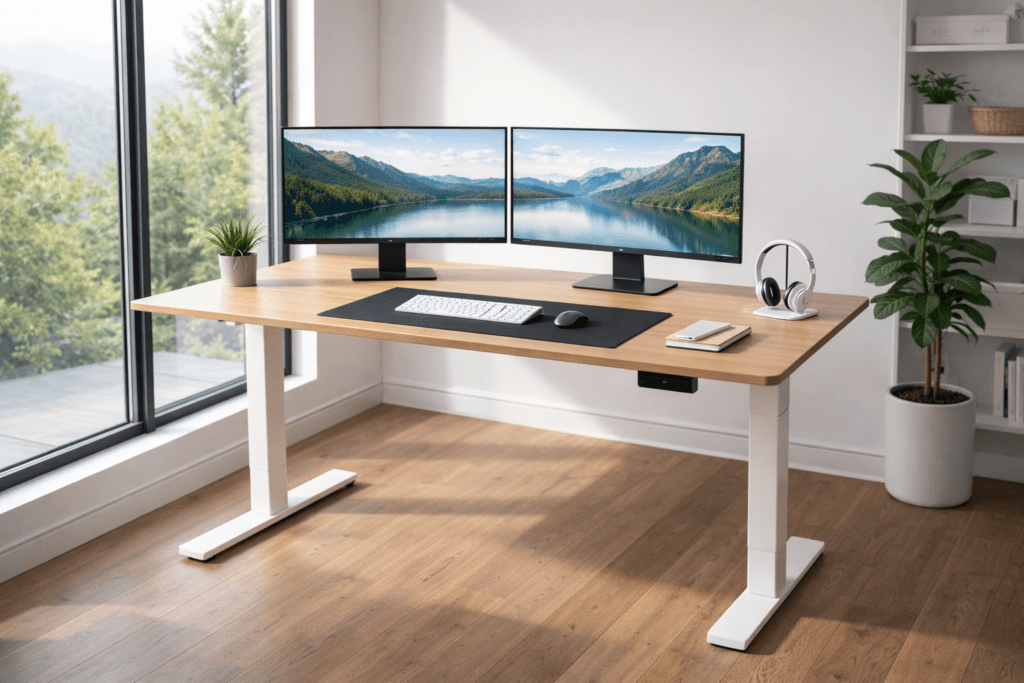
If you use two monitors side by side, the desk should be wide enough to hold both screens comfortably.
A good width is usually:
55 to 63 inches
This size allows space for:
- Two monitors
- Keyboard and mouse
- Small accessories like speakers or notebooks
If your desk is smaller than this, your setup might feel cramped. Your mouse movement may be limited, and your arms may feel tight.
A wider desk makes your daily work much easier.
If you want to understand desk sizes more clearly, you can read a detailed guide on choosing a desk for multiple monitors that explains how width and depth affect comfort.
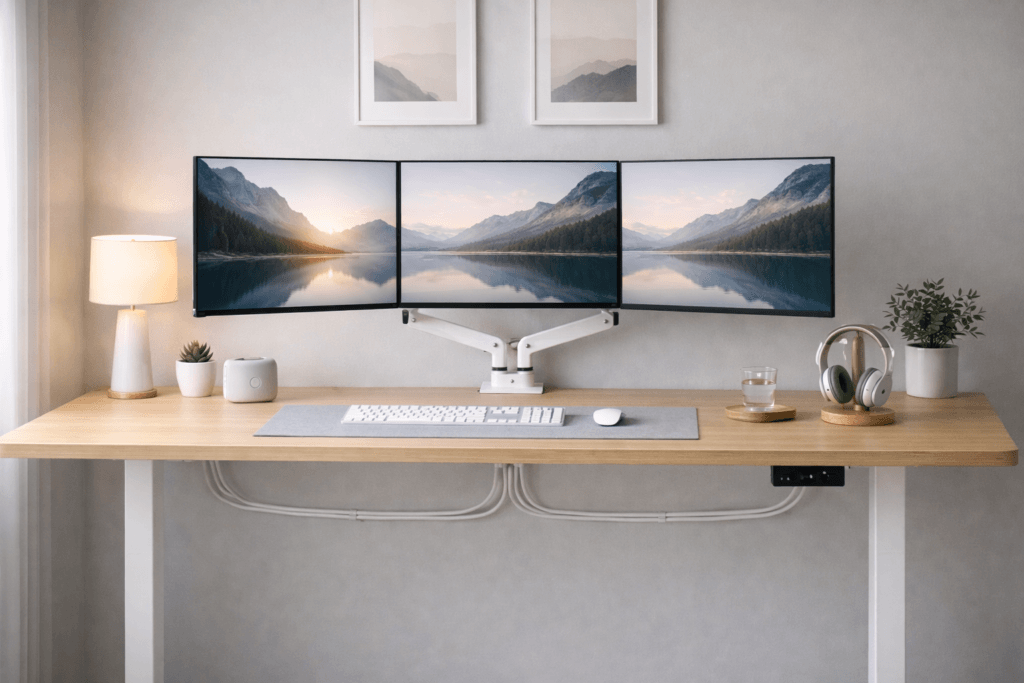
Standing Desk for Triple Monitors
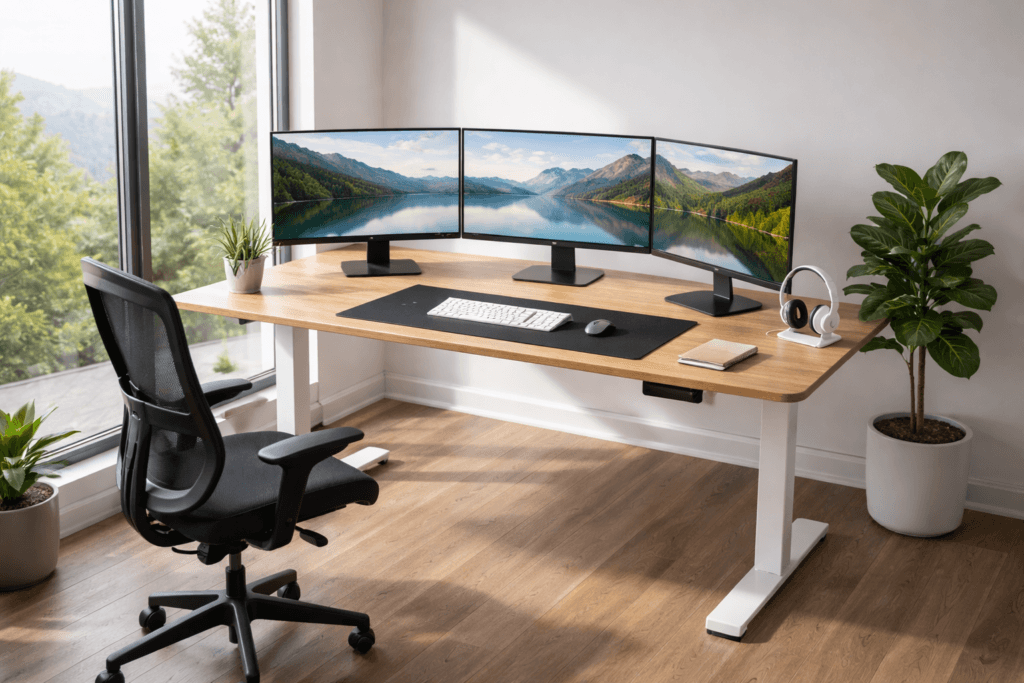
Using three monitors takes a bit more planning.
When you add a third screen, the Workspace becomes wider. If the desk is too small, the monitors may extend beyond the desk’s edges or sit too close together.
For three screens, a desk width of 63 to 72 inches usually works well. This range allows your side monitors to fit within a 30-degree viewing angle on each side, so all your screens stay comfortably within your natural line of sight. Keeping your monitors inside this viewing cone helps prevent excess neck rotation and reduces cervical strain, making it easier to maintain good posture throughout the day.
This provides enough space for the monitors to sit in a slight curve, reducing neck movement.
A wider desk also helps keep your keyboard centred and your arms relaxed.
Weight Capacity You Should Look For
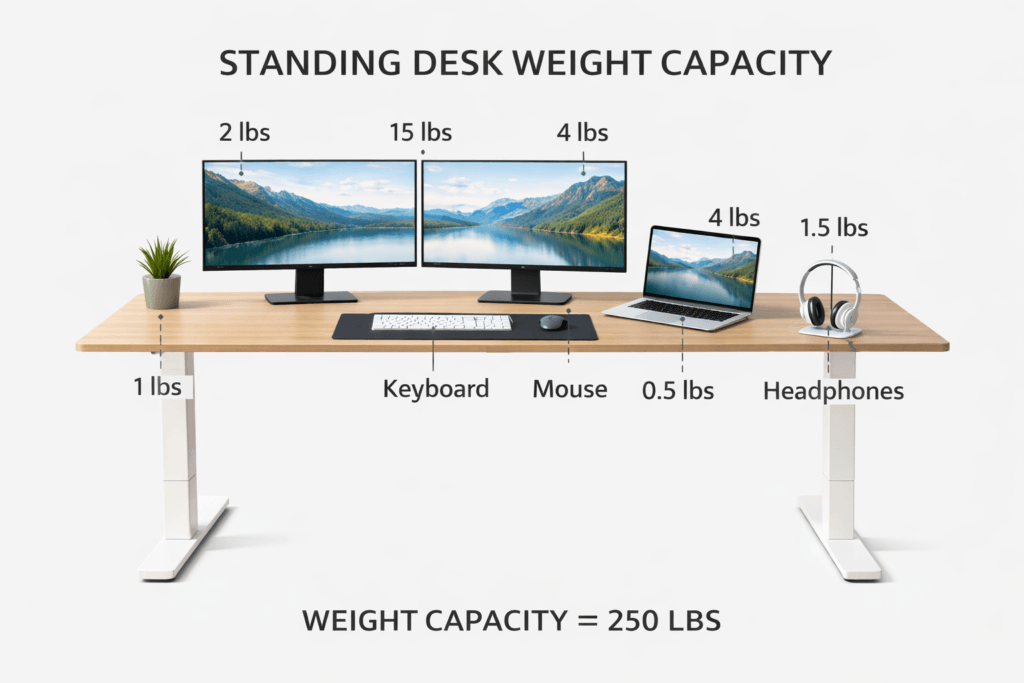
Every standing desk has a maximum weight it can hold.
This limit includes everything on the desk:
- Monitors
- Monitor arms
- Laptop or desktop computer
- Speakers
- Keyboard and accessories
Each monitor weighs about 8 to 15 pounds. Three monitors plus an arm can quickly increase the total weight.
That’s why many experts suggest picking a desk that can hold 100 to 150 pounds or more.
A higher capacity usually means:
- Stronger Frame
- Better motors
- Less wobble
Even if your equipment is lighter, a stronger desk will still give you better stability.
How to Prevent Standing Desk Wobble
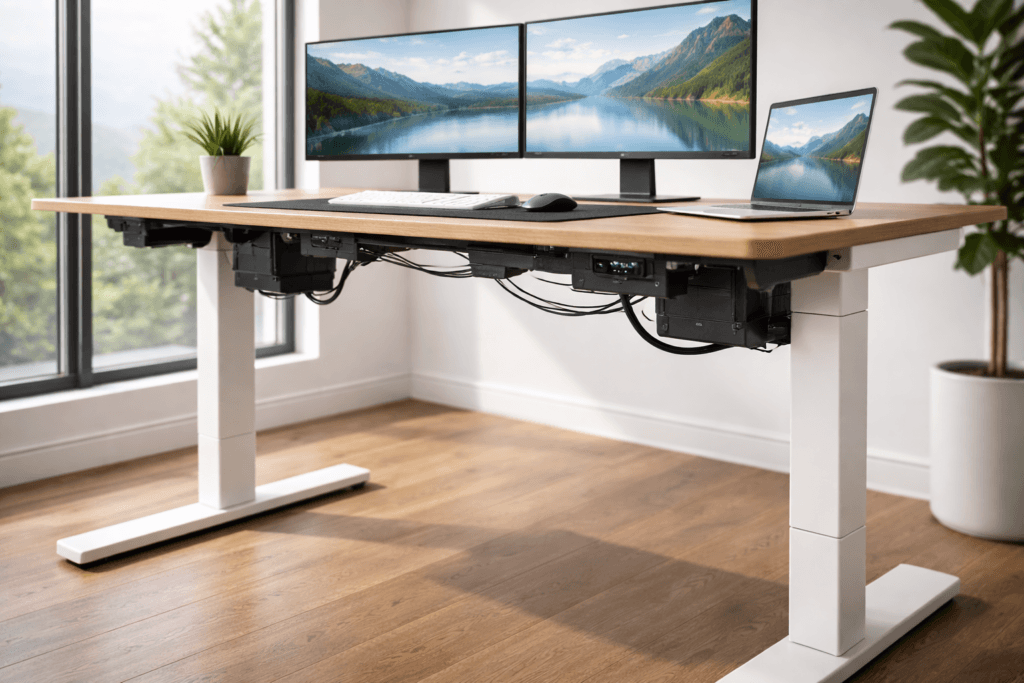
One of the biggest worries with standing desks is that they might wobble.
As the desk rises, it becomes more sensitive to movement. If the Frame is weak, the desk may shake when you type or adjust your screens.
Luckily, there are ways to fix this problem. If your standing desk already feels wobbly, tighten all bolts and screws to ensure nothing is loose. You can also check if your desk legs are even and add stabilising feet or pads under the base to reduce movement. These quick fixes can often make a noticeable difference in stability.
Choose a Strong Frame
The desk frame keeps everything together. A thick steel frame is much stronger than thin metal or plastic parts.
A sturdy frame helps keep the desk balanced as it moves up and down.
Look for Dual Motors
Many standing desks use motors to raise and lower the desk.
A desk with two motors works better than one with a single motor. Two motors share the load for smoother, stronger lifting.
This is especially helpful when multiple monitors add extra weight.
Use a Wider Desk
Wider desks spread the weight more evenly.
A small desk with three monitors can feel top-heavy. A wider desk helps spread out the weight and keeps your setup stable.
Keep the Weight Balanced
Try to place monitors evenly across the desk.
For example:
- Centre the main monitor
- Place side monitors symmetrically.
Keeping the weight balanced helps the desk lift evenly and reduces shaking.
Best Monitor Setup on a Standing Desk
A good monitor setup helps protect your neck and eyes.
No matter if you sit or stand, your screen position should always feel comfortable.
Here are a few simple tips.
Keep the Top of the Screen at Eye Level
Your eyes should naturally look straight at the screen.
If the monitor is too low, you bend your neck downward.
If it is too high, you tilt your head back.
Both positions can cause neck pain.
Maintain a Comfortable Viewing Distance
Your screen should sit about 20 to 30 inches away from your eyes. An easy way to check this is to sit or stand in your normal working position and extend your arm straight out in front of you. Your fingertips should touch the screen—about 22 to 24 inches—and this is usually a good guide for a healthy distance.
If the screen is too close, your eyes work harder to focus. If it is too far away, you may lean forward without noticing.
The right distance helps you keep good posture.
Angle Side Monitors Slightly
When using two or three screens, angle the side monitors slightly toward you.
This setup creates a curved viewing area and helps reduce neck movement.
Monitor arms can make this easier. Monitor arms are adjustable mounts that let you change your screens’ position. They let you adjust your screens more easily and line them up better. A detailed guide onmonitor arm positions can help you find the best angles.
Should You Use Monitor Arms With a Standing Desk?
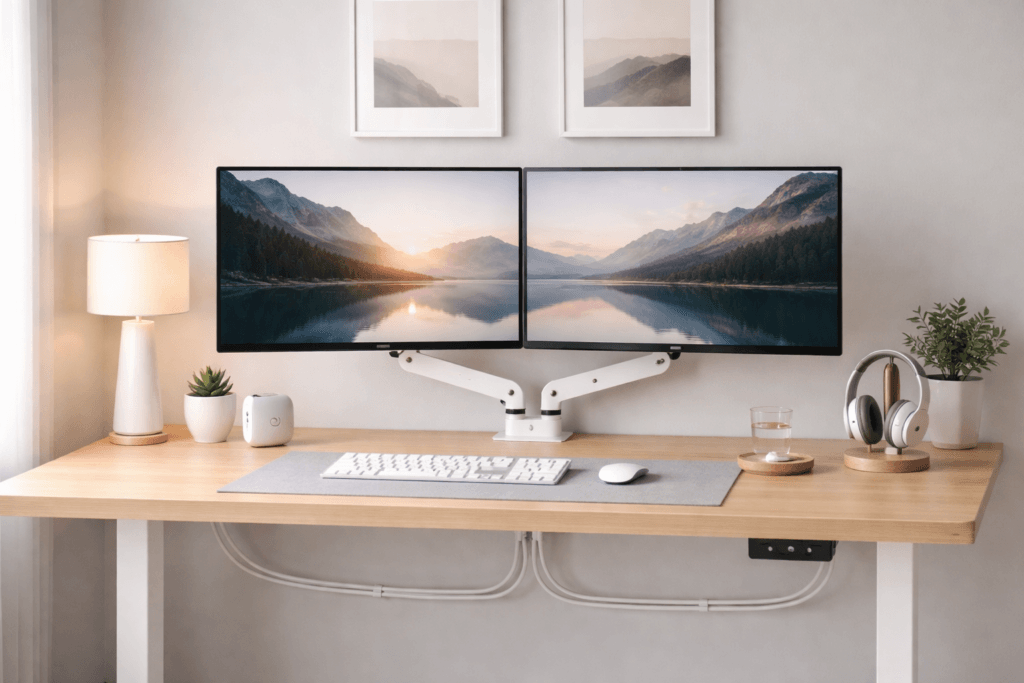
You don’t have to use monitor arms, but they can improve your setup.
These adjustable mounts hold your monitors above the desk. Instead of sitting on stands, your screens attach to movable arms.
Monitor arms offer several benefits:
- They free up desk space.
- They allow precise height adjustment.
- They help align multiple screens.
- They reduce neck strain.
With a standing desk, monitor arms also help you maintain the right screen height when switching between sitting and standing.
Many people find that monitor arms make their Workspace cleaner and more flexible.
Switching between sitting and standing positions may require monitor adjustments throughout the day. Maintaining ideal monitor height in both positions helps reduce unnecessary neck strain and posture imbalance.
Sitting vs Standing Monitor Height
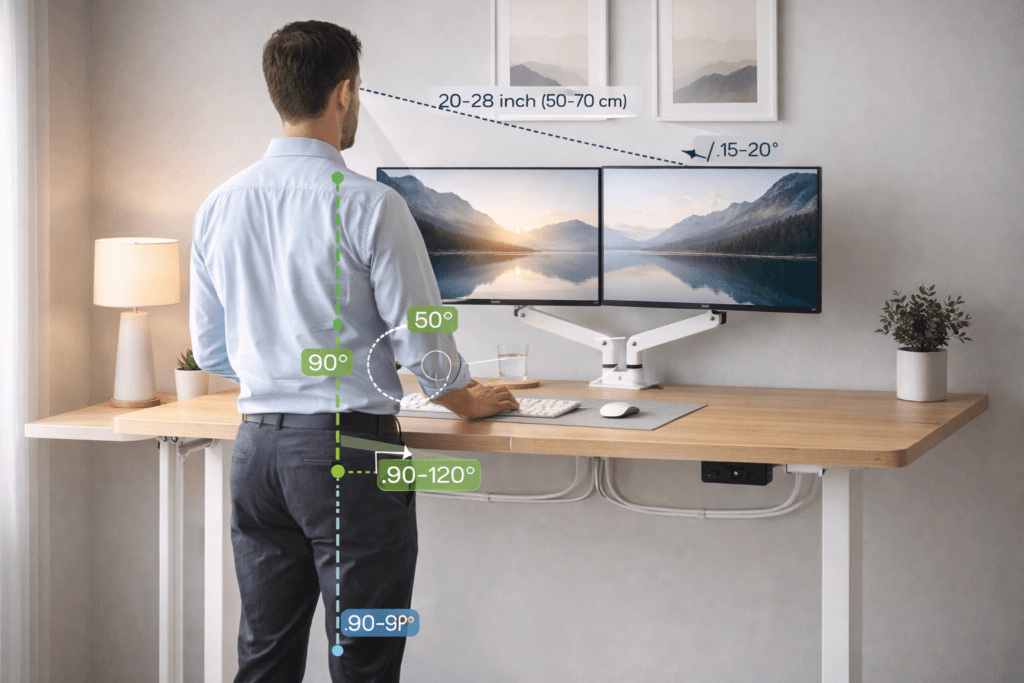
Being able to switch between sitting and standing is one of the best things about adjustable desks.
Still, your screen height should always support good posture.
When sitting:
- Your elbows should bend around 90 degrees.
- Your shoulders should feel relaxed.
- Keep your eyes straight ahead at the screen.
When standing:
- The monitor should remain at eye level.
- Your wrists should stay straight while typing.
- Your weight should be evenly distributed between both feet.
Posture is important for comfort. If you want to learn more, reading about laptop versus monitor setups for posture can show how different screen positions affect your body posture.
Common Mistakes With Standing Desk Monitor Setups
Even experienced users sometimes make mistakes when setting up their Workspace.
Avoiding these mistakes can save you time and money.
Choosing a Weak Desk
Many people choose a desk based only on price or appearance.
A weak desk may look nice, but it struggles to lift multiple monitors. Always check the weight capacity and frame strength.
Using a Desk That Is Too Small
Small desks limit movement and make screens feel crowded.
Having more space makes you more comfortable and helps keep your Workspace organised.
Ignoring Cable Length
Standing desks move up and down. If cables are too short, they may pull or disconnect. Checklist for Cable Slack:
• Leave at least 8 inches of vertical play for every cable so they do not stretch or disconnect at full height.
• Check that all cables move easily as you change desk positions.
Always make sure your cables have enough slack for the desk to move freely.
Placing Monitors Too Close
A shallow desk may push monitors closer to your eyes.
This can cause eye strain and headaches if you work for long periods.
Poor Monitor Alignment
If the centre monitor is not aligned with your body, you may twist your neck while working.
Make sure your main screen is directly in front of you.
Standing Desk Setup Checklist
Before finishing your setup, review this simple checklist in the order you’ll encounter each step. This way, each stage builds on the last, resulting in a smoother assembly process.
✔ Desk width supports the number of monitors
✔ Desk depth keeps screens at a safe distance
✔ Weight capacity supports all equipment
✔ Frame and motors feel stable
✔ Mables allow full desk movement
✔ Monitors sit at eye level
✔ Workspace feels comfortable for both sitting and standing
If your setup checks all these boxes, you’re on the right track.
Why People Choose Standing Desks for Multiple Monitors
Many professionals now use standing desks because they offer more flexibility.
Standing while you work helps break up long periods of sitting. This movement can boost your energy and reduce stiffness.
Using multiple monitors can also make you more productive. You can organise your tasks across different screens instead of constantly switching windows.
Together, these tools help you build a powerful workstation.
When your desk is stable and the right size, your Workspace feels smooth and comfortable.
Frequently Asked Questions
Can a standing desk support multiple monitors?
Yes. Most modern standing desks can support two or three monitors if they have strong frames and enough weight capacity.
What size standing desk do I need for dual monitors?
A desk width of 55 to 63 inches usually works well for two monitors, leaving space for a keyboard and mouse.
How much weight can a standing desk hold?
Many standing desks support 100 to 150 pounds or more. Always check the manufacturer’s specifications to ensure the desk can handle your equipment.
Do standing desks wobble with multiple monitors?
Some desks may wobble if they have weak frames or low weight capacity. Choosing a strong desk with a solid frame helps reduce movement.
Are monitor arms safe on standing desks?
Yes. Monitor arms are commonly used with standing desks and can improve screen positioning while freeing up desk space.
How high should monitors be on a standing desk?
The top of the monitor should be at or slightly below eye level. This helps keep your neck in a natural position.
Is a dual motor desk better for multiple monitors?
Dual motor desks usually lift more smoothly and support heavier setups, making them a good choice for multiple monitors.
What desk depth works best for monitors?
A desk depth of 24 to 30 inches provides a comfortable viewing distance and helps prevent eye strain.
Final Thoughts
A standing desk can work great with multiple monitors if you plan your setup carefully.
The key points are simple:
Choose the right desk size.
Check the weight capacity.
Use proper monitor positioning.
Keep the desk stable and balanced.
When you bring these elements together, your Workspace will be more comfortable and productive.
A sturdy standing desk lets you switch between sitting and standing without worrying about shaky screens or cramped space.
The result is a setup that supports your work, protects your posture, and helps you stay focused all day.